
Printers, scanner & scale
How this till prints receipts, pops the cash drawer, reads barcodes and weighs scale-priced items.
Overview
MiniMart's hardware setup covers four related pieces: the receipt printer and cash drawer (how and when a receipt prints, and how the drawer pops open), the Printers list (every physical printer registered at a branch, and which counter uses which), the barcode scanner (usually plug-and-play), and the weighing scale (for scale-priced products). All of it is designed around a small background helper called the print agent rather than printing straight from the browser.
Why it's useful
A thermal receipt printer and a cash drawer are not things a web browser can talk to directly — there's no browser API for "cut the paper" or "send 12V to the drawer solenoid." The print agent is a small program you install once on the till computer that bridges that gap, so receipts print at full width on your actual roll size and the drawer physically pops, instead of every sale falling back to a generic browser print dialog.
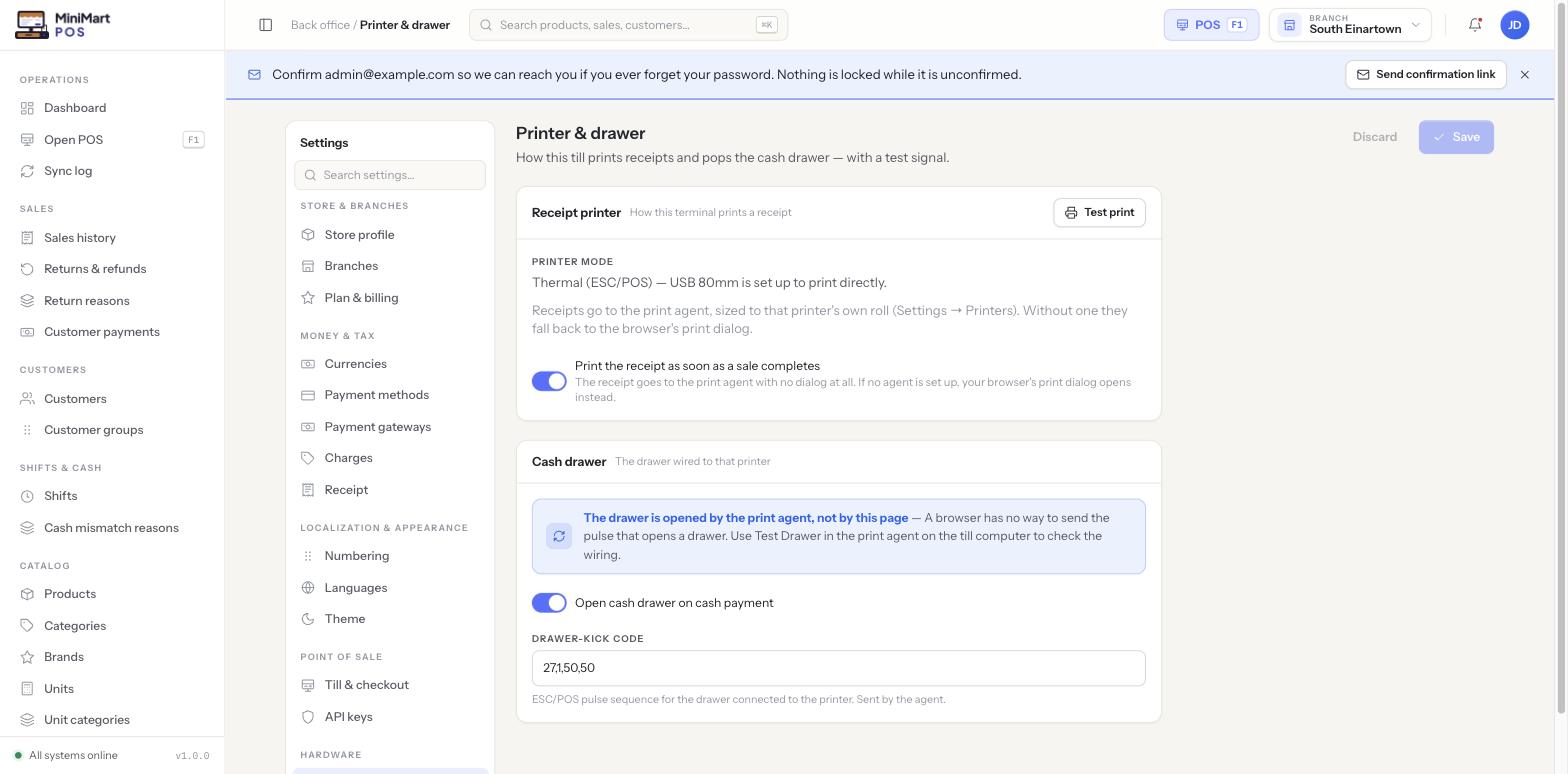
Printer & drawer
Set up the receipt printer
- Download and install the print agent
Go to Settings → Printers and click Download the agent (shown both at the top of the page and on each printer's own detail panel) — this takes you to a Downloads page with the Windows and macOS installers. Install it on the computer the printer is actually plugged into, not the computer you're configuring MiniMart from, if those differ.
- Choose a printer mode
Thermal (ESC/POS) is the normal choice for a USB or network thermal receipt printer — pick the roll width (e.g. 80mm) that matches your printer. Without a print agent and a configured printer, MiniMart falls back to the browser's own print dialog, which still works but won't auto-size to a receipt roll.
- Register the printer
Open the Printers list (see below) and add the physical printer so it has a paper size and can be assigned to a counter.
- Send a test print
Use Test print on this page to confirm the print agent can actually reach the printer before relying on it during a live sale.
- Decide on auto-print
Toggle Print the receipt as soon as a sale completes if you want every sale to print without the cashier clicking print separately — turn it off if you'd rather print only on request (e.g. a bagging area that reprints selectively).
Set up the cash drawer
- Wire the drawer through the printer
Cash drawers are normally wired through the receipt printer's drawer-kick port, which is why the print agent — not the browser — is what actually sends the pulse that opens it.
- Send a test drawer pulse
Use Test Drawer in the print agent itself (on the till computer) to confirm the wiring, rather than expecting a button on this web page to pop it — a browser has no way to send that signal directly.
- Toggle auto-open on cash
Turn on Open cash drawer on cash payment so the drawer pops automatically whenever a sale is tendered in cash — leave it off if staff prefer to open it manually.
The drawer is opened by the print agent running on the till computer, never by the browser tab itself — there's no browser mechanism that can send that pulse. If the drawer isn't popping, check the print agent's own Test Drawer button and its connection to the printer before assuming MiniMart's setting is wrong.
Printers (registered devices)
The Printers screen is where you register every physical printer at a branch — not just the receipt printer at the counter, but a kitchen or back-office printer if you use one. Each entry records the printer's paper size and which counter or register sends jobs to it, so a branch with multiple registers can route each one to its own physical printer rather than sharing a single queue.
Barcode scanner
Most USB and Bluetooth barcode scanners work as a keyboard wedge — they need no special driver or configuration in MiniMart at all. A scan simply "types" the barcode's digits into whatever field is currently focused (the POS search box during a sale, a barcode field on the product form while setting one up) followed by an Enter keystroke, exactly as if someone had typed it and pressed Enter. If scanning seems to do nothing, the most common cause is focus being on the wrong field rather than a scanner configuration problem — click into the POS search box and try again.
Weighing scale
For products set to Sold by: weight on the product form, a connected weighing scale pushes its live reading straight into the POS cart as the quantity, instead of a cashier estimating or typing a weight by hand. This is what makes selling loose produce or bulk goods by the kilogram accurate and fast — the price per unit from the product record multiplies against whatever the scale reports at the moment the item is added to the cart.
Tips & best practices
- Always send a Test print after changing printer mode or paper size — don't wait for a live sale to discover a mismatch.
- Keep auto-print on for a busy counter; turn it off only where a deliberate print-on-request workflow is wanted.
- If a scanner "doesn't work," check which field has focus before troubleshooting the scanner itself — a keyboard-wedge scanner has nowhere to send its input if nothing is focused.
- Register every physical printer at a branch in the Printers list, even a secondary one, so each counter prints to the correct device rather than fighting over one queue.
Notes & warnings
Without a print agent installed and a printer configured, MiniMart falls back to the browser's own print dialog for receipts, and the cash drawer cannot be opened automatically at all — it would need to be opened manually by the cashier.