
The POS screen
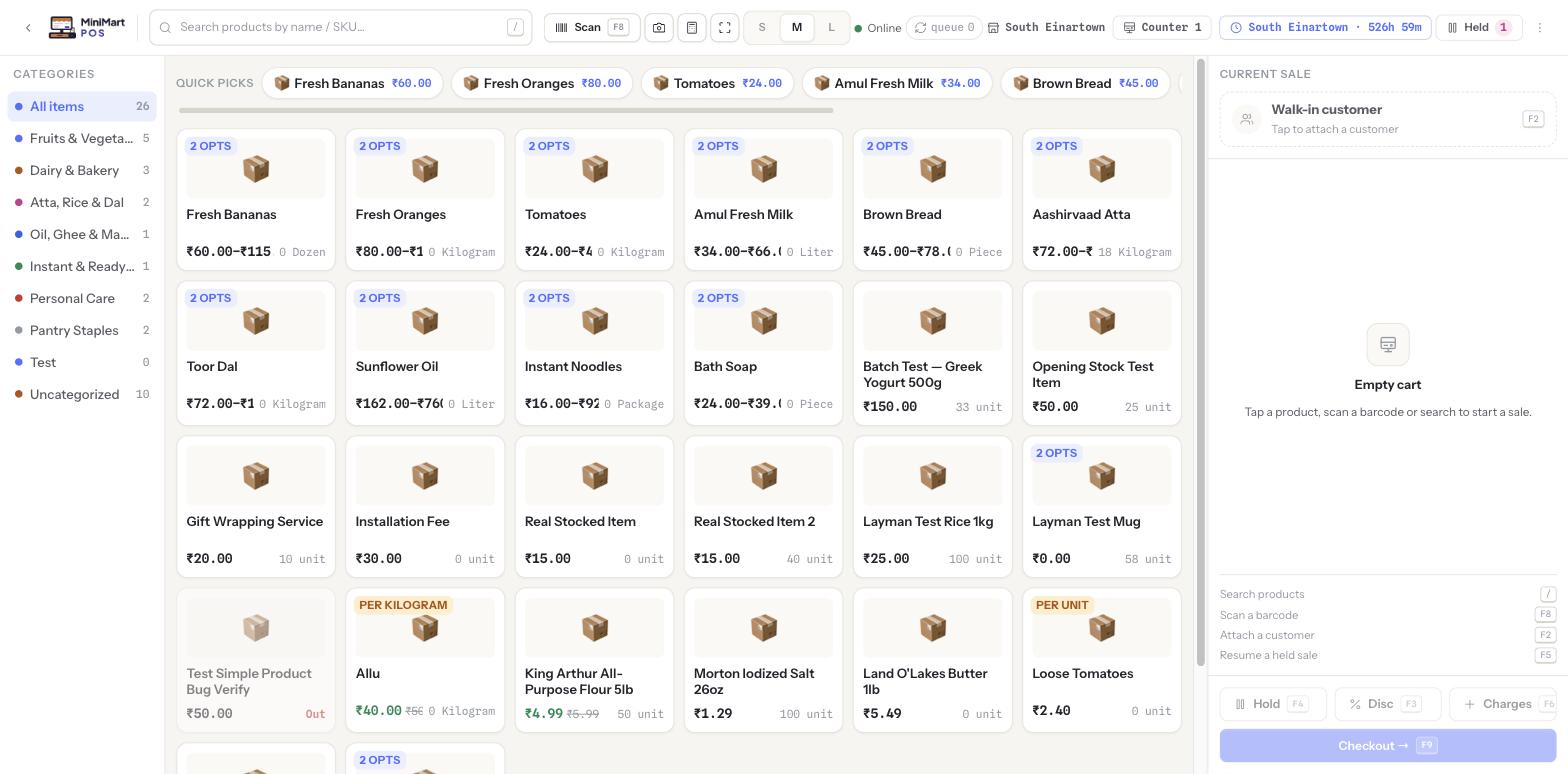
This is the till — the screen a cashier lives in all day. Search or scan a product into the cart, handle variants, weighed items and discounts, attach a customer if the sale needs one, and check out.
Overview
The POS screen is scoped to one branch and one counter (a physical till or register) at a time — the branch name and a "Counter 1"-style chip sit in the top bar so a cashier always knows where they're ringing sales into. You can't use it cold: it requires an open shift on that counter first. If nobody has opened one yet, MiniMart prompts the cashier to open a shift — declaring a starting cash float — before the till will let them add anything to a cart. See Shifts & cash drawer for that part.
Once a shift is open, the screen is built for speed: a product search box (with a / shortcut to jump into it from anywhere), a Scan action for barcode input, and a category rail down the left so a cashier rarely needs the mouse for a routine sale.
Why it's useful
A busy counter lives or dies on how many seconds each sale takes. Every slow step here — hunting for a product, fumbling a discount, not knowing if a customer has credit — turns into a queue. The POS screen keeps the whole sale on one page, keyboard shortcuts next to every action, and defers anything that isn't needed for a plain cash sale (customer, discount, extra charges) to a single tap so it never gets in the way of the common case.
Step by step
Before you can sell: open a shift
- Open the POS screen
If the counter has no open shift, MiniMart shows the shift-open prompt instead of the till.
- Declare your starting float
Enter the cash you're starting the drawer with. This is what today's cash reconciliation will be measured against when the shift closes.
- Start selling
Once the shift is open, the till loads and the counter chip and session clock appear in the top bar.
Ring up a sale
- Find the product
Type into the search box (press / to focus it from anywhere) or press F8 to scan — a keyboard-wedge barcode scanner or the on-screen camera scanner both work. You can also browse the category rail on the left (All items, Fruits & Vegetables, Dairy & Bakery, and so on, each with a live item count) or tap a pinned item from the Quick picks row for your fastest-moving products.
- Add it to the cart
Tapping a tile adds one unit straight to Current Sale. A product with option groups (size, flavour, etc.) shows an N OPTS badge and opens an option picker first — the cashier must choose an option before it can be added.
- Let weighed items use the scale
Products sold by weight pull their quantity straight from an integrated scale instead of a typed number — see Printers, scanner & scale for setup.
- Adjust quantity or line discount
Both are editable directly on the cart line, so a cashier can correct a quantity or apply a one-off markdown without leaving the sale.
- Attach a customer if the sale needs one
Press F2 or tap the "Walk-in customer" row to attach a real customer — needed for a credit/on-account sale, loyalty, or just so the sale shows up in their purchase history. See Taking payments for on-account sales and Customers & credit for the account itself.
- Checkout
Press F9 or tap the big Checkout button to move to the payment screen — see Taking payments.
Hold and resume a sale
If a customer steps away mid-sale, press F4 to put the current cart on hold instead of losing it or blocking the till for the next customer. A "Held" badge in the top bar keeps count of how many sales are waiting. Press F5 to bring one back — it reopens exactly as it was left, ready to keep adding to or check out.
Discounts and extra charges
Press F3 for a sale-level discount (as well as the per-line discount described above), and F6 for an extra charge such as packaging or delivery. Both apply before checkout and show up on the printed or shared receipt as their own lines.
Batch, expiry and traceability
For products tracked by batch, MiniMart defaults to FEFO (first-expiry-first-out) — it automatically picks the oldest valid batch for the sale so stock doesn't go out of date sitting on the shelf while a newer batch sells first. A cashier can override this and pick a specific batch manually at the till when it matters (e.g. a customer asking for the longest remaining shelf life). A product that's fully out of in-date stock is blocked from sale rather than silently sold expired — see Stock, low stock & batches.
Keyboard shortcuts
| Key | Action |
|---|---|
| / | Jump to the product search box |
| F8 | Scan a barcode |
| F2 | Attach a customer to the current sale |
| F3 | Apply a discount |
| F4 | Hold the current sale |
| F5 | Resume a held sale |
| F6 | Add an extra charge |
| F9 | Checkout |
Printing and sharing receipts
After checkout, a receipt can print to a connected thermal (ESC/POS) printer through MiniMart's local print agent, or be shared digitally instead of printed. Printer, cash-drawer and scanner setup all live in Printers, scanner & scale. The default behaviour (auto-print, print preview, grid tile size, and whether a customer is required before checkout) is configured in Till, checkout & API keys.
Tips & best practices
- Teach new cashiers the function-key shortcuts first — F9 to checkout and F4/F5 to hold/resume cut the most time off a queue.
- Pin your fastest-moving items to Quick picks so the busiest hour of the day never needs the search box at all.
- If a product needs an option picked every time (the "N OPTS" badge), check whether it should really be a variant product — see Products & variants.
- Don't leave sales on hold overnight — a held sale still reserves nothing in stock, so a long-held cart can quietly go stale against current prices and availability.
Notes & warnings
The POS screen will not ring up a sale on a counter with no open shift. If a cashier is blocked, check Shifts & cash drawer — either open one, or confirm someone hasn't accidentally left the previous one open on a different counter.
A batch/expiry-tracked product with no remaining in-date stock cannot be sold from the till, even if the system still shows an expired batch's quantity elsewhere. This is deliberate — see Stock, low stock & batches.
Once a sale is completed you can't edit it from the till — use Returns & refunds against the original invoice instead of trying to "undo" a sale at the counter.