
Taking payments
What happens after you press Checkout: cash, card and gateway payments, splitting one sale across several methods, and putting all or part of a sale on a customer's credit account.
Overview
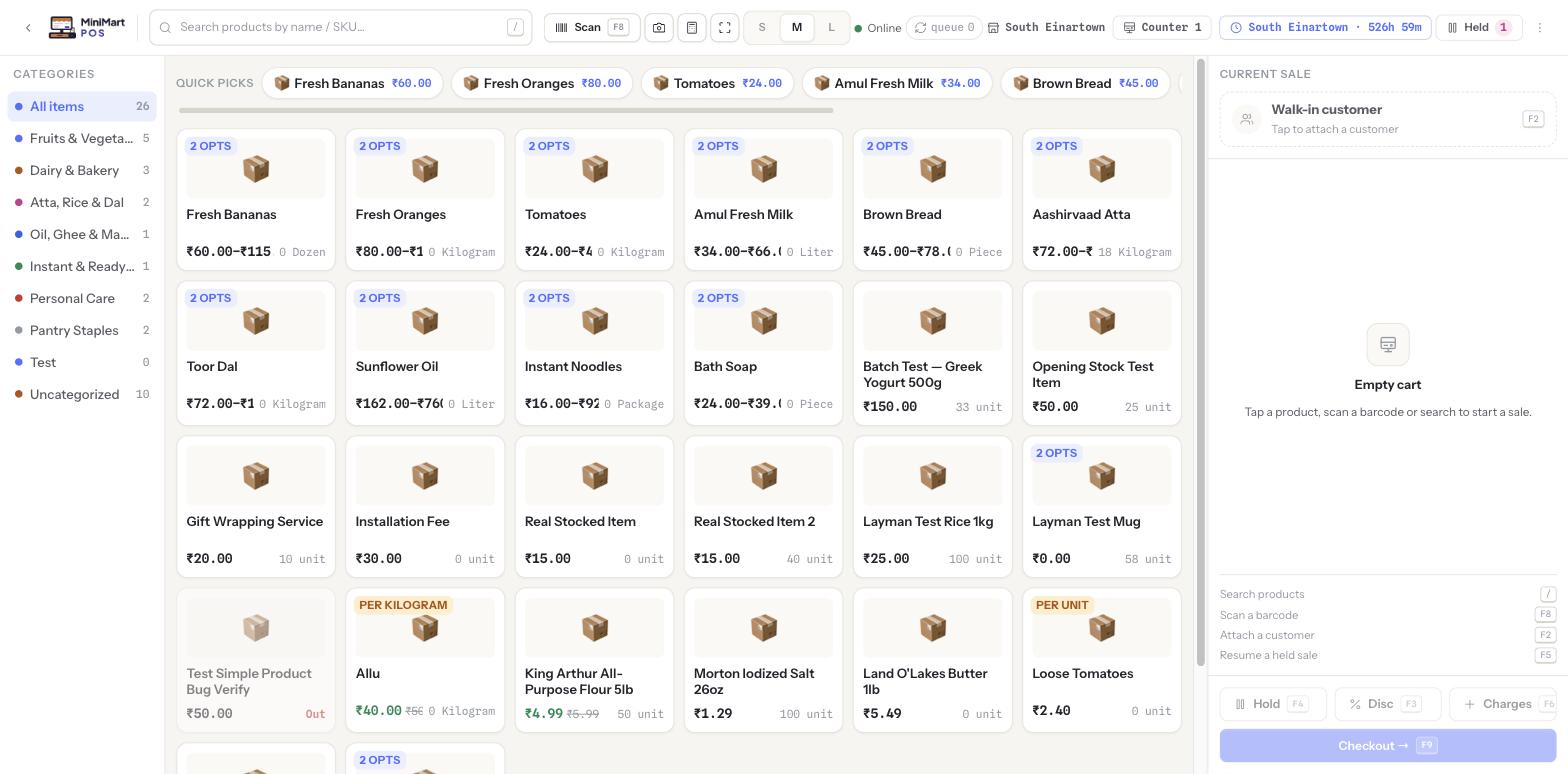
Pressing Checkout (F9) on the POS screen moves a cart from "building a sale" to "collecting money for it." The payment screen tracks the amount due against whatever's been tendered so far, supports more than one payment method on the same sale (split tender), and — for a customer with a credit account — can send some or all of the sale to their running balance instead of collecting cash right now.
Why it's useful
Real counters don't always get paid in one clean way — a customer pays part cash, part card, a regular splits a big bill onto their account, or you simply don't take the payment gateway they'd prefer. Split tender and on-account sales mean the cashier never has to turn a sale away or fudge the numbers to make it fit one payment method.
Step by step
Paying with cash
- Enter the amount tendered
Type what the customer physically hands over. MiniMart calculates the change due instantly.
- Confirm
Completing the sale records the cash as taken into the current shift's drawer — it's part of what gets counted when the shift closes. See Shifts & cash drawer.
Paying by card or a payment gateway
- Choose the method
Pick card, or any of the online gateways your store has enabled (for example a Razorpay/Stripe/PayPal-style provider).
- Capture the reference
Depending on the method, a reference or authorisation code is recorded against the payment so it can be reconciled later.
- Confirm
The sale completes once the payment is recorded — no change calculation applies to non-cash methods.
Splitting a sale across multiple methods
- Add the first payment
Enter an amount against cash, card or a gateway — it doesn't have to cover the whole sale.
- Add another method for the remainder
The screen keeps showing the balance still due. Keep adding payments, in any mix of methods, until the balance reaches zero.
- Complete the sale
The receipt shows every method and amount that was used, not just one.
Selling on credit (on account)
- Attach the customer first
An on-account sale needs a real customer record, not a walk-in — attach one from the POS screen with F2. See Customers & credit.
- Send part or all of the sale to their account
Whatever isn't covered by another payment method goes onto the customer's running balance, subject to any credit limit set on that customer — MiniMart won't let a sale push a customer over a limit that's been set.
- Collect it later
The balance is cleared down the line with a receipt recorded in Customer payments — a separate step from the sale itself.
Configuring what your store accepts
The list of payment methods a store accepts (cash, card, specific gateways) is managed in Money & tax settings — that's also where a store connects its own payment gateway credentials.
A store's own gateway (configured in Money & tax settings) collects payment from that store's customers at checkout — it's what this page is about. It is entirely separate from the platform's own gateways in the superadmin console, which collect your store's subscription fee. The two never share credentials, and a problem with one never affects the other.
Tips & best practices
- Set a sensible credit limit on every customer who's allowed to buy on account — it's the only thing standing between a regular customer's convenience and an unrecoverable balance.
- Reconcile gateway references regularly against your provider's own dashboard, especially if a store runs more than one gateway.
- When in doubt about whether a payment posted, check Sales history on the specific invoice rather than re-running the charge.
- Use split tender rather than asking a customer to round up or down to a single method — the receipt will always match what was actually collected.
Notes & warnings
An on-account sale that would take a customer over their set credit limit is blocked at checkout. Raise the limit in Customers & credit first if the sale is genuinely intended, or collect part of it another way to bring the on-account portion back under the limit.
Totals, change due and tax are always calculated server-side, never trusted from the till's local state alone — this is deliberate, so a browser glitch or an offline queue replay can never silently change what a customer actually owes.