
Customers & credit
Everyone who buys from you, in one place — contact details, groups, store credit, and a running account that tracks exactly who owes you what.
Overview
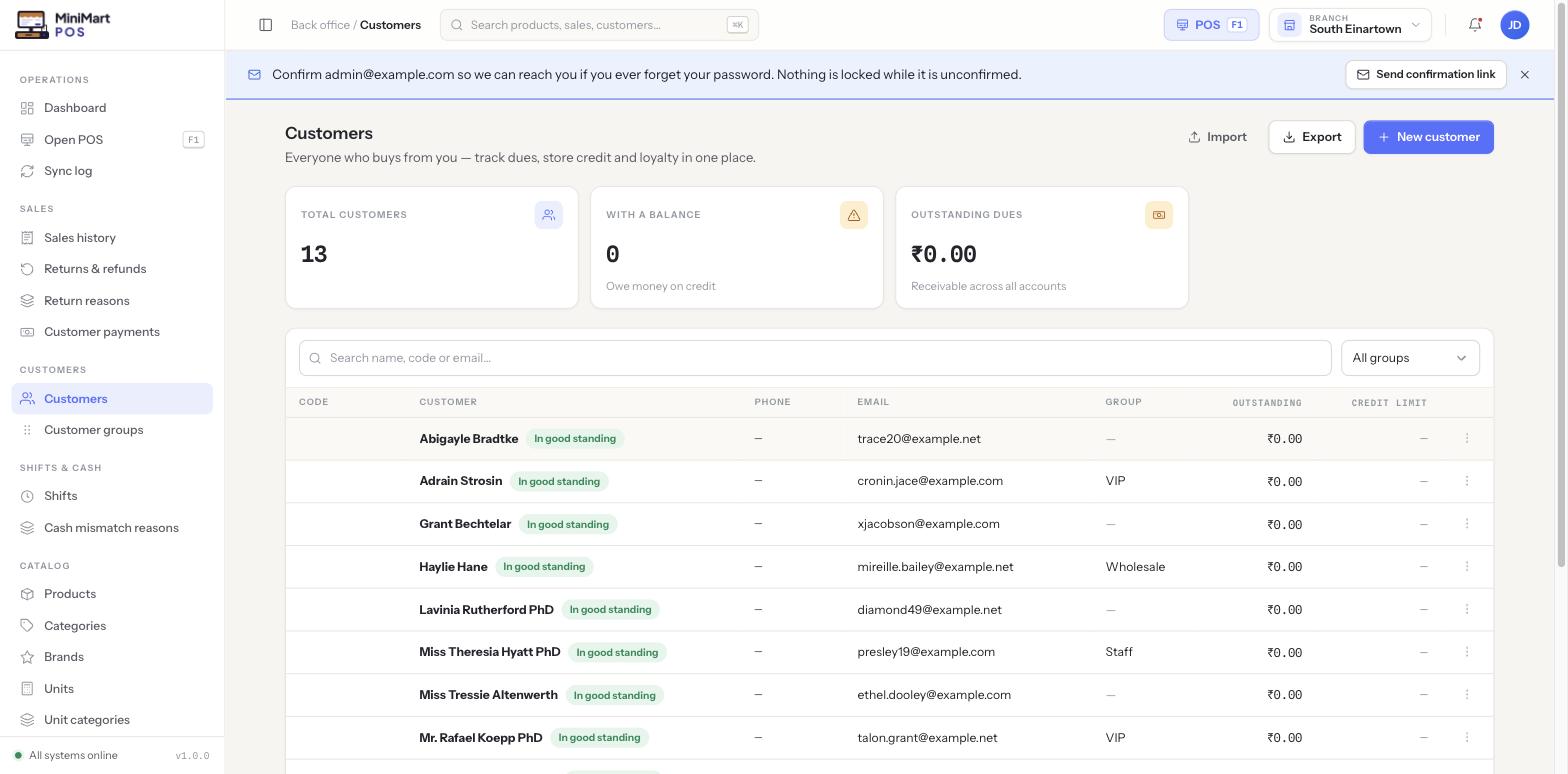
The Customers list is your address book and your accounts-receivable ledger combined. Every customer gets a short Code, contact details, an optional Group (for discounting), and — if you allow it — a running account: how much they currently owe (Outstanding) and how far they're allowed to run a tab before the till stops them (Credit limit). A customer who has never gone over their limit and has nothing overdue shows a green In good standing status; one who is over their limit or has a balance outstanding past its due terms is flagged differently so staff can see at a glance who to chase or be cautious with at the till.
Why it's useful
Most small shops run at least some business on trust — a regular who pays at the end of the week, a wholesale account that settles monthly. Without a system, that's a notebook under the counter. MiniMart turns it into a real ledger: every credit sale at the POS adds to a customer's balance automatically, every customer payment reduces it, and you can see at any moment exactly who owes you money, how much, and whether they're within the limit you set for them — before you let them add one more sale to the tab.
Step by step
Add a customer
- Open New customer
From the Customers list, click New customer. You can also add one on the fly from the POS screen mid-sale if a walk-in wants to start an account.
- Fill in contact details
Name, phone and email — phone is usually how cashiers will search for a customer quickly at the till.
- Pick a group (optional)
Assign a Group like "VIP" or "Wholesale" if this customer should inherit a group-level discount. Leave it blank for a regular retail customer.
- Set a credit limit (optional)
If you'll let this customer buy on account, set how far they can run a balance before the POS warns or blocks further credit sales. Leave it at zero to keep them cash/card-only.
- Save
The new customer immediately appears in search at the POS and in reports.
Read a customer's account
- Open the customer
Click through from the list to their detail page.
- Check the Account summary card
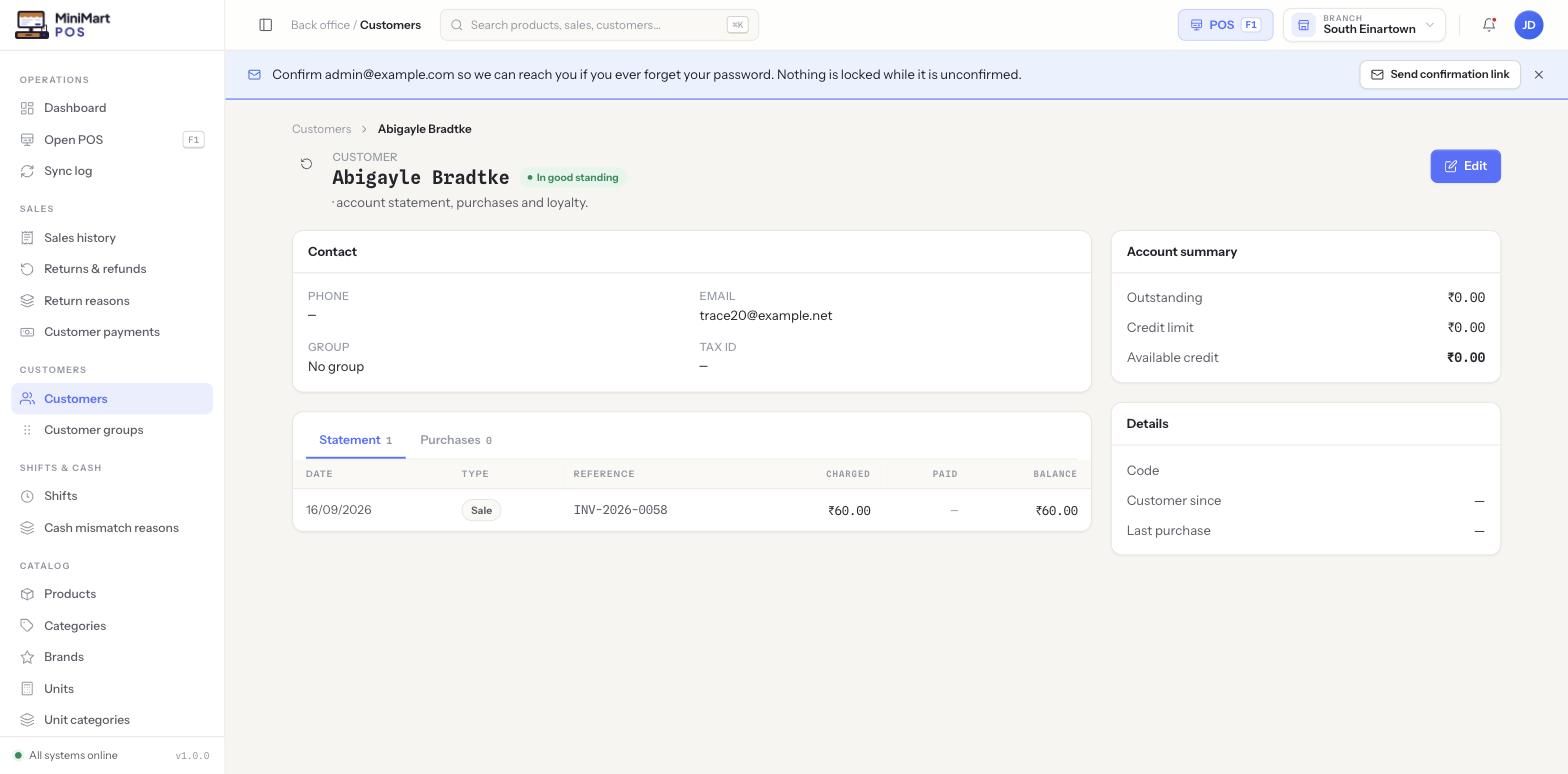
Shows Outstanding (what they currently owe), Credit limit, and Available credit (limit minus outstanding) — the number that actually controls whether the POS will let them add another sale to account.
- Switch between Statement and Purchases
The Statement tab is the full ledger — every sale, payment and return that touched this customer's balance, in date order, with a running balance per row. The Purchases tab is a simpler view of just the sales, useful for "what has this customer bought from us."
Groups and discounts
Customer groups (e.g. "VIP", "Wholesale") exist mainly to carry a shared discount — set a discount percentage on the group once, and every customer in it gets it automatically at checkout, without you having to set a price override per customer. An individual customer can still carry their own override that takes precedence over the group's rate if they've negotiated something specific. Groups also make it easy to filter the customer list and run reports for "all wholesale accounts" as a single slice.
Credit sales and payments
A credit sale is recorded at the POS the same way as any other sale, just tendered "on account" instead of cash or card — see Taking payments for how split and on-account tender works at checkout. The customer's Outstanding balance increases by the sale total. To bring it back down, record a customer payment against that customer whenever they pay off some or all of what they owe — it's a separate flow from the original sale, so you can collect a partial payment today and the rest next week without touching the sale record itself.
Bulk import
If you're migrating from another system or a spreadsheet, use Import on the Customers list to bring in a CSV or Excel file. The import walks you through mapping your file's columns (name, phone, email, group, opening balance, etc.) to MiniMart's fields and shows a preview before anything is saved, so you can catch a wrong column mapping before it creates hundreds of bad records. Export works the same way in reverse, for backups or for moving data to another tool.
Tips & best practices
- Set a credit limit for every account customer, even a generous one — it's your safety net against a balance quietly growing unnoticed.
- Use groups for discount tiers rather than negotiating one-off prices per customer; it's easier to audit and easier to change later.
- Check the "With a balance" and "Outstanding dues" stat cards on the list regularly — they're the fastest way to see your total credit exposure across every customer.
- Always review the import preview before confirming — a misread column (phone into email, for example) is much easier to fix before the records exist than after.
Notes & warnings
Raising or removing a customer's credit limit does not change their existing Outstanding balance — it only changes how much further the POS will let them run before stopping further on-account sales. Reducing a customer's balance always happens through a customer payment, never by editing the account.
"In good standing" reflects the account's actual state — no overdue balance, within limit — not just that nothing has happened yet. A brand-new customer with no sales and a zero balance also shows as in good standing, which is expected.