
Reports & analytics
Pick a report to see how the shop is doing — filter by date and branch, then export to Excel or PDF.
Overview
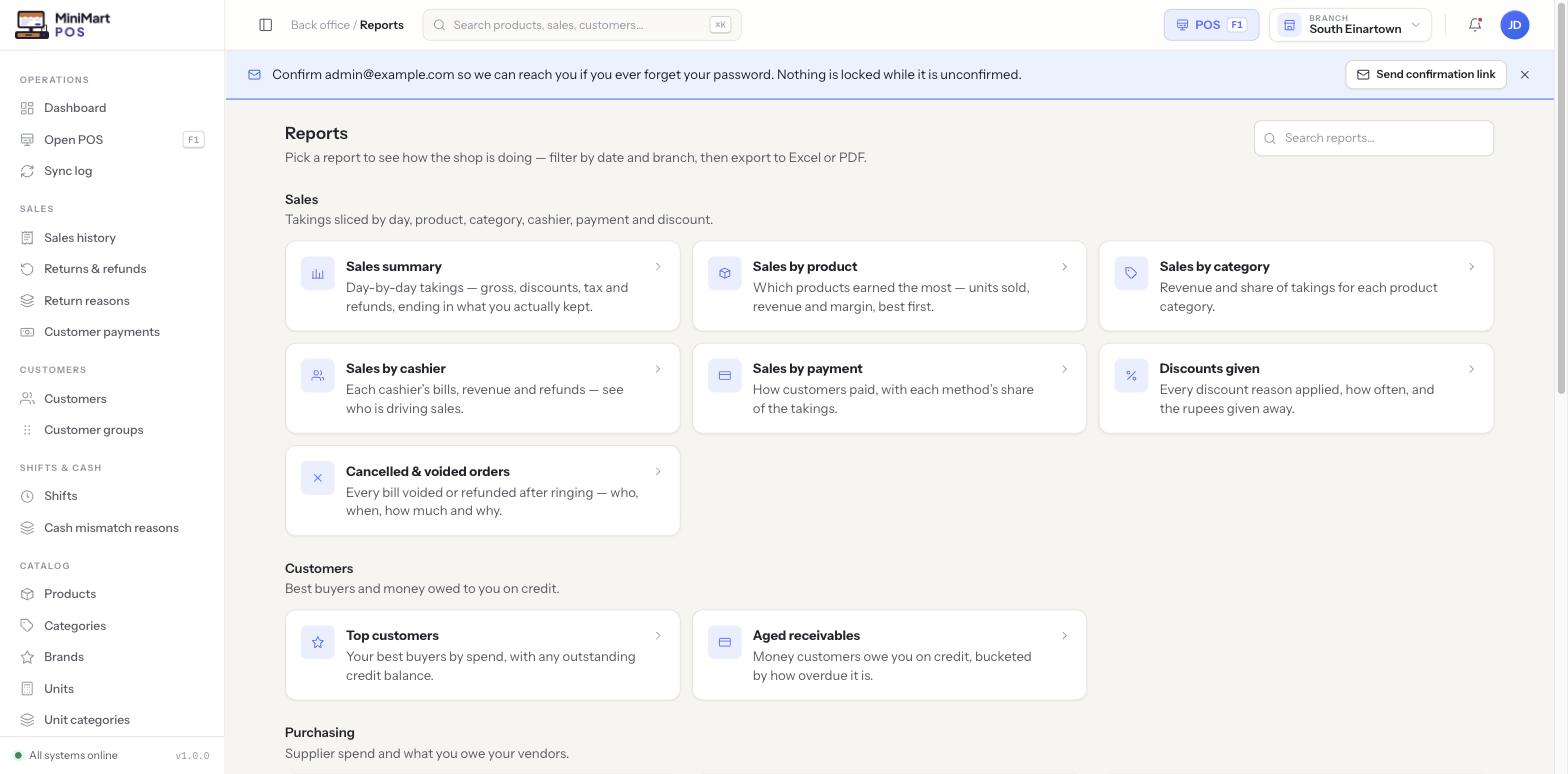
The Reports hub is one page with every report the shop can run, grouped into six categories. Each report is a card — an icon, a title and a one-line description — that opens into its own filtered, exportable view. Every report supports a date range and, for a multi-branch store, a branch filter, and exports to Excel/CSV and/or PDF so you can hand numbers to an accountant or keep an offline record.
Why it's useful
A single sale or a single stock movement doesn't tell you much on its own — reports are where the pattern shows up: which products are actually earning their shelf space, which cashier's drawer keeps coming up short, which customers are taking too long to pay, which supplier bills are overdue. Keeping all of it filterable by the same date-range and branch controls, and exportable the same way every time, means you can build a weekly or monthly routine around a handful of reports instead of hunting for the numbers by hand.
The six report categories
Sales
Takings sliced by day, product, category, cashier, payment and discount.
- Sales summary — day-by-day takings: gross, discounts, tax and refunds, ending in what you actually kept.
- Sales by product — which products earned the most: units sold, revenue and margin, best first.
- Sales by category — revenue and share of takings for each product category.
- Sales by cashier — each cashier's bills, revenue and refunds, so you can see who's driving sales.
- Sales by payment — how customers paid, with each method's share of the takings.
- Discounts given — every discount reason applied, how often, and the amount given away.
- Cancelled & voided orders — every bill voided or refunded after ringing: who, when, how much and why.
Customers
Who's buying, and who's overdue.
- Top customers — your best buyers, ranked by spend.
- Aged receivables — how overdue customer credit balances are, bucketed by how far past due.
Purchasing
What you spend outside the till.
- Top suppliers by spend — who you buy the most from.
- Payables aging — how overdue what you owe suppliers is.
- Expense summary — every expense rolled up by category, for the real cost of running the shop beyond stock.
Inventory
What's on the shelf and what's moving.
- Inventory valuation — stock value currently on the shelf.
- Inventory movement — the full stock ledger: every addition and deduction, in order.
- Inventory expiry — batches nearing or past expiry, see Stock, low stock & batches.
- Low stock — everything under its reorder threshold right now.
- Catalog compliance — products missing required catalog data (barcode, category, tax, etc.).
Shifts
Drawer performance, per cashier and per shift.
- Shifts by cashier — drawer performance per cashier across their shifts.
- Shift variance — cash-count mismatches at close; see Shifts & cash drawer for how a shift closes.
Tax
What you've collected, ready to file.
- Tax summary — collected tax, broken down the way your return filing needs it; see Tax setup for how rates and groups are configured.
Step by step
Run and export a report
- Open Reports
Use the search box at the top of the hub if you know what you're looking for, or scroll to the right category.
- Click a report card
Opens that report with sensible default filters already applied.
- Set the date range
Every report filters by date range — pick a preset (today, this month, etc.) or a custom range.
- Pick a branch (multi-branch stores)
Narrow to one branch, or leave it on all branches for a store-wide total. See Multi-branch.
- Export
Use Excel/CSV for a working spreadsheet, or PDF for something to print or send as-is.
Tips & best practices
- Build a short weekly routine — Sales summary, Low stock and Shift variance catch most day-to-day problems early.
- Check Aged receivables and Payables aging together — they're the two sides of your cash position that don't show up in Sales summary at all.
- Use the report search box instead of scrolling once you know a report's name — it's faster across six categories.
- Export to Excel when you need to pivot or chart the numbers yourself; use PDF when the report is the final document.
Notes & warnings
Reports require the Show Reports permission, and the store's subscription plan must include the Reports module. A store on a plan without it simply doesn't see Reports in its sidebar at all — see Store profile & plan for what each plan includes.