
Stock, low stock & batches
What's on your shelves right now, what's about to run out, what's about to expire — and the full history of every stock movement behind those numbers.
Overview
MiniMart splits the catalog from the stock. A product, its variants, its category and its brand are store-wide — the same item exists identically no matter which of your branches you're looking at. What's different per branch is the quantity on hand and, if you use them, a price override. The branch switcher in the top bar is what scopes every screen on this page to one branch at a time — switch branches and the same product list reappears with different on-hand numbers, because the stock itself lives at the branch, not the catalog.
This area has four related screens: Available Stock (what you have), Low Stock (what needs reordering), Batches & Expiry (what's aging out), and Stock activity (why the numbers are what they are).
Why it's useful
Stock value (quantity × average cost) tells you how much money is sitting on your shelves without you having to do the maths by hand. Low Stock turns a vague feeling of "we're running low on a few things" into a concrete, actionable list you can turn straight into a purchase order. Batches & Expiry stops you from selling something that's gone off, or worse, a batch that's been recalled — by blocking it at the till rather than relying on a cashier remembering to check a date. And Stock activity means that when a number looks wrong, you can trace exactly which sale, adjustment, transfer or goods receipt put it there, instead of guessing.
Step by step
Check what's on the shelves — Available Stock
- Open Inventory → Stock levels
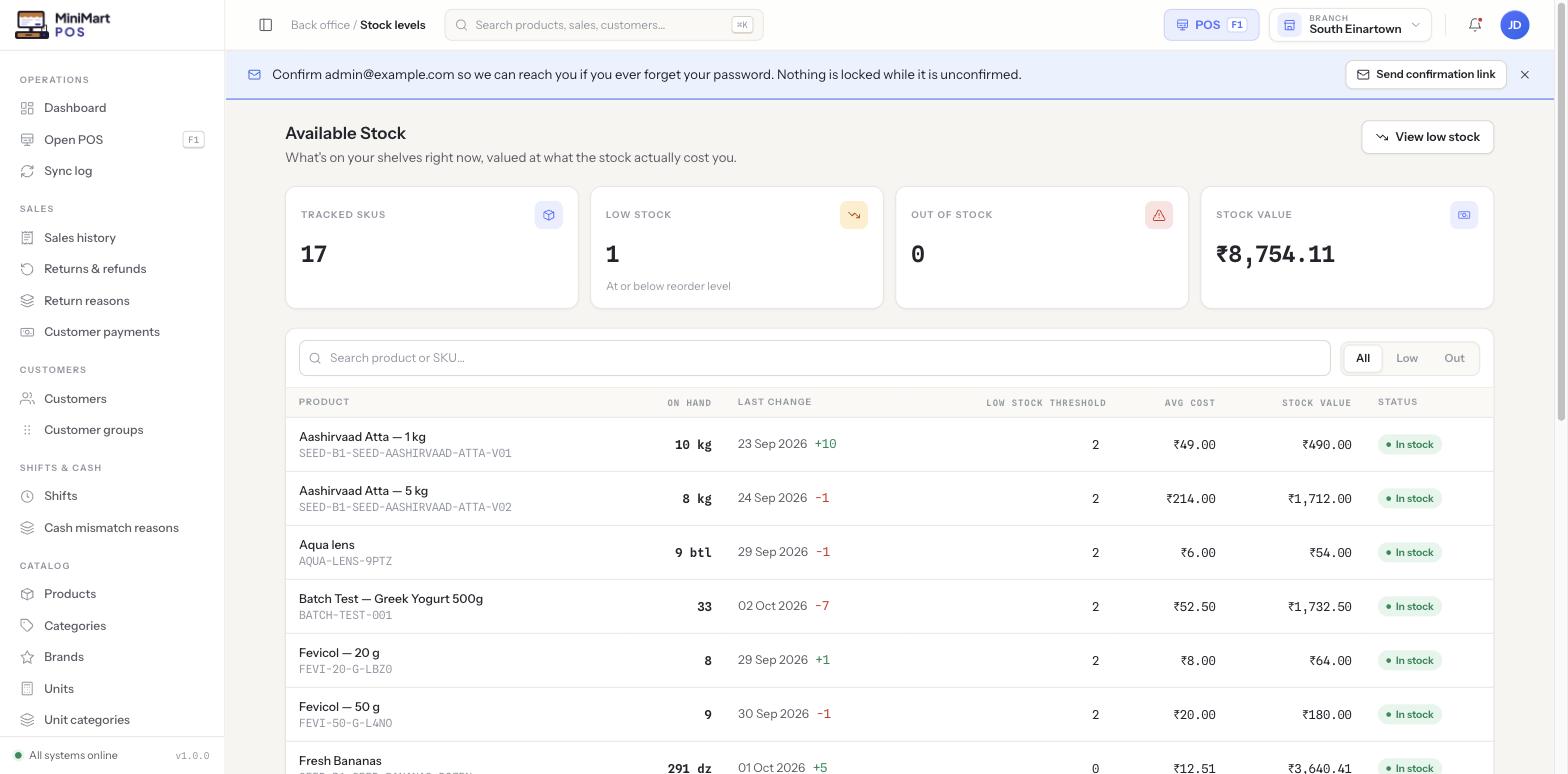
You'll land on a table of every product (and variant) stocked at your current branch.
- Use the search box or the All / Low / Out tabs
Search by product name or SKU, or switch tabs to jump straight to items that need attention.
- Read the columns
On hand is the current quantity with its unit (e.g. "10 kg"). Last change shows the most recent movement date and whether it added or removed stock. Avg cost and Stock value come from your purchase history — stock value is simply on-hand quantity × average cost.
Find what needs reordering — Low Stock
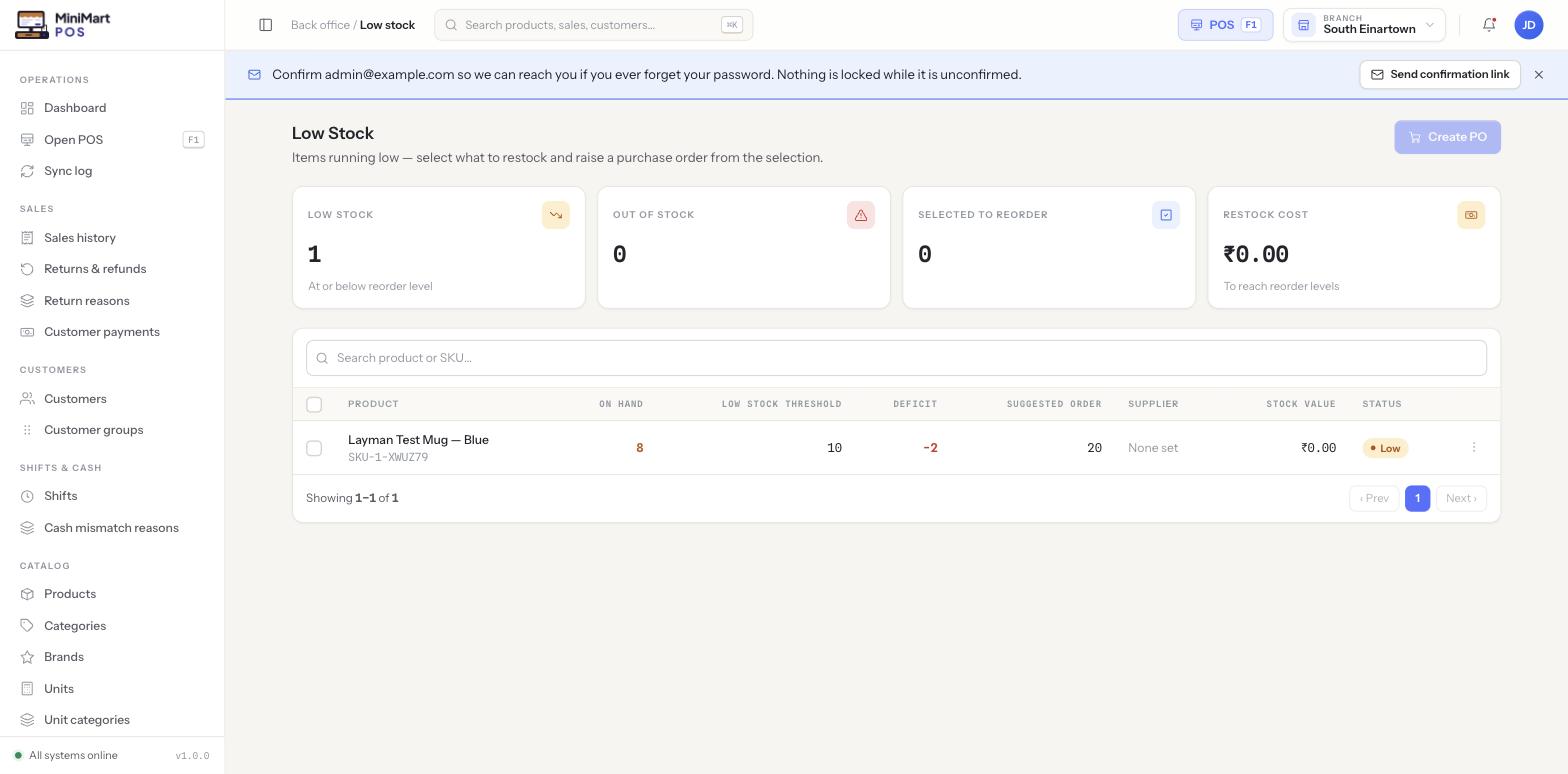
A product is "low stock" once its on-hand quantity drops to or below its reorder threshold. Every product can either inherit a store-wide default threshold (set once in Settings → Purchasing) or override it individually on the product itself — see Products & variants for where that override lives.
- Open Inventory → Low stock
You'll see every product at or below its threshold, with how far below it is (Deficit) and a Suggested order qty to bring it back to target.
- Tick the items you want to restock
Select as many or as few as you need — items with no assigned supplier are still selectable, they'll just show "None set" until you pick one on the PO.
- Click Create PO
MiniMart opens a new draft purchase order pre-filled with the items and suggested quantities you selected — adjust supplier and quantities before sending it.
Track expiry per batch — Batches & Expiry
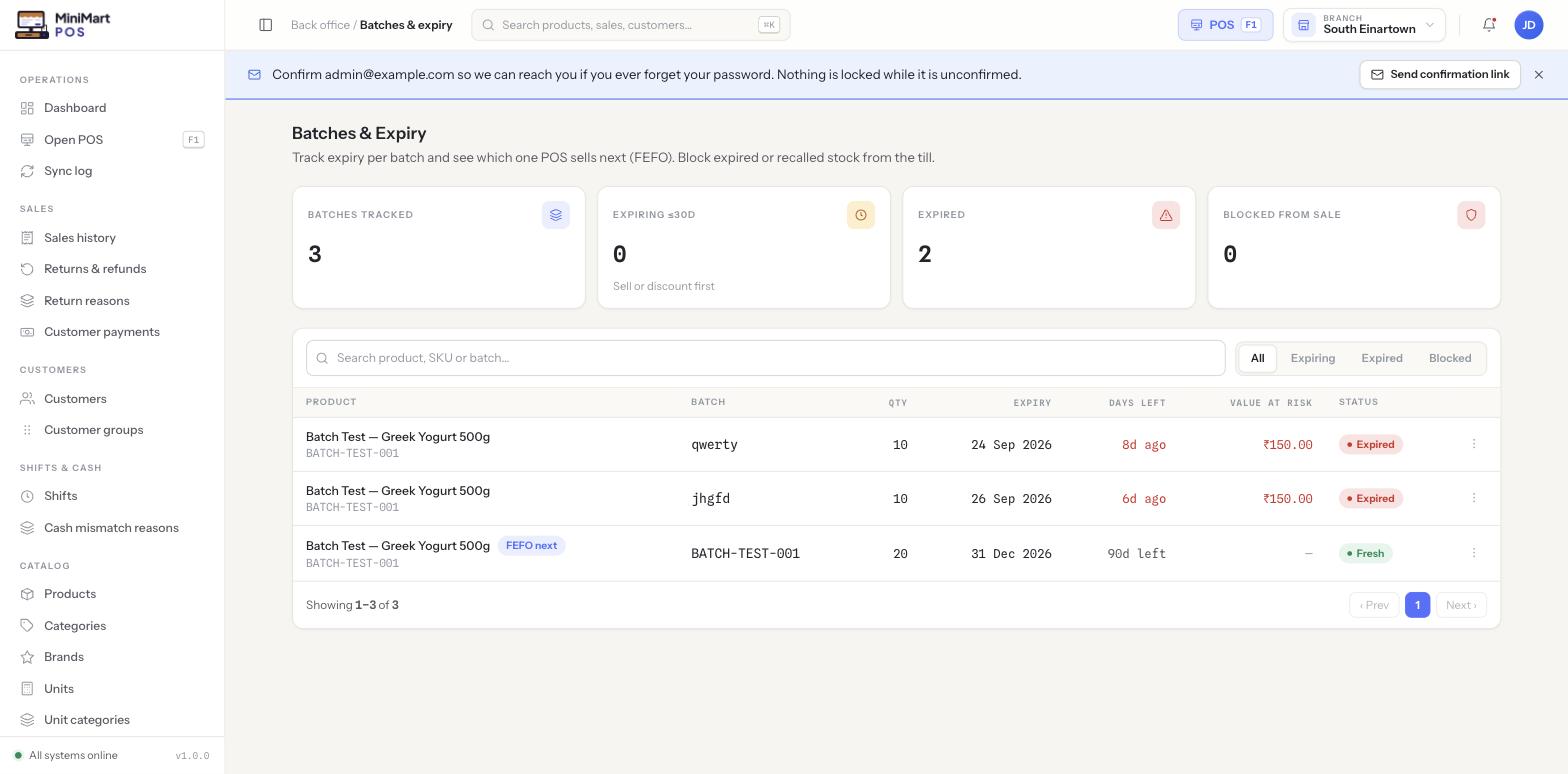
This screen only shows products that have batch/lot tracking turned on — a per-product setting in Products & variants. If a product you expect to see is missing here, check whether batch tracking is actually enabled on it first.
- Open Inventory → Batches & expiry
Every tracked batch is listed with its quantity, expiry date, and days left (or days overdue, shown in red).
- Use the All / Expiring / Expired / Blocked tabs
"Expiring" surfaces anything due within 30 days so you can sell it down or discount it first; "Blocked" shows batches manually flagged unsellable (e.g. a recall).
- Understand FEFO
FEFO (first-expiry-first-out) means the POS automatically consumes the oldest non-expired batch of a product first at checkout — you don't have to pick a batch manually at the till for this to work.
Stock activity — the movement ledger
Reached from the sidebar as Inventory → Stock activity, this is the complete, chronological record of every event that has ever changed a product's stock at a branch: sales, returns, manual adjustments, stock counts, transfers in and out, and goods received against a purchase order. Each line shows the quantity change and a running balance, so you can always answer "why is this number what it is?" by reading backwards from today. See Adjustments, counts & transfers for the screens that create most of these entries manually, and Purchase orders for how receiving stock creates them automatically.
Tips & best practices
- Check Low Stock on a schedule (daily or weekly, depending on how fast you turn over stock) rather than waiting to notice a shelf is empty.
- Set a sensible store-wide default reorder threshold once in Settings → Purchasing, and only override it per product for genuine outliers (very fast or very slow movers).
- Turn on batch tracking only for products that actually have a meaningful shelf life (food, pharmacy, cosmetics) — it adds a step at receiving and isn't useful for things like hardware or stationery.
- If a stock value looks wrong, check Stock activity before assuming it's a bug — most "wrong" numbers trace back to a real adjustment, transfer or return someone made.
Notes & warnings
Adding or editing a product on one branch changes it everywhere — the catalog is store-wide by design. Only the on-hand quantity, and an optional price override, are specific to the branch you're currently viewing. Don't expect a second branch to "not see" a product you just added; it will, with its own stock quantity starting at zero.
An expired batch cannot be sold through the POS at all — it isn't a soft warning a cashier can click past. If you need to sell through genuinely expired stock (e.g. at a discount, where locally permitted), handle that as a deliberate write-off via Stock Adjustments rather than expecting the till to allow the sale.