
Adjustments, counts & transfers
The three ways stock changes outside of a sale or a purchase: a manual correction, a physical recount, or a move between branches — plus the one-time opening stock screen.
Overview
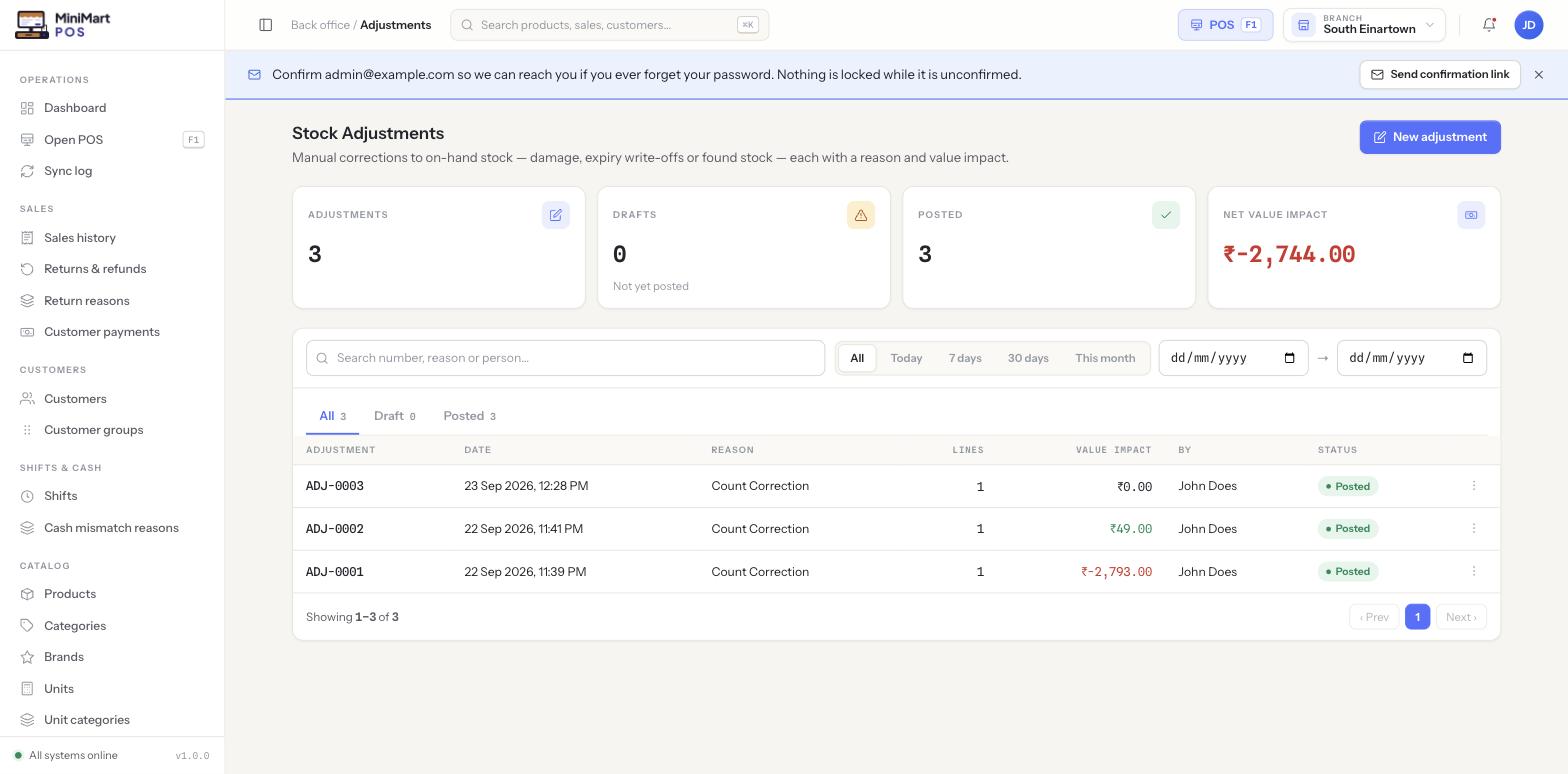
Sales reduce stock and purchases increase it automatically — but real shops also need to correct stock by hand: something gets damaged, a recount finds a discrepancy, or a branch needs stock moved from another one. MiniMart covers this with four screens that all share the same underlying idea: nothing changes on-hand quantity until it's posted. Every adjustment and count can be built and saved as a draft first — reviewed, corrected, even abandoned — with zero effect on stock, and only takes effect the moment someone posts it.
Why it's useful
Without a reason-coded, draft-then-post workflow, stock corrections become invisible guesswork — a quantity just changes and nobody can say why, by whom, or how much it cost you. Requiring a reason on every adjustment means your shrinkage, damage and write-off numbers are something you can actually run a report on later, not just a feeling. The draft step means a count or correction in progress can't accidentally throw off what the POS sells against while someone is still entering lines.
Step by step
Stock Adjustments
- Click New adjustment
Pick the branch (if you have more than one) and give the adjustment a reason — e.g. "Damage", "Theft write-off" or "Count Correction" — chosen from your store's managed list of adjustment reasons.
- Add lines
For each product, enter the quantity change (positive to add stock you found, negative to remove stock that's gone) and an optional note.
- Save as Draft
A draft has no effect on stock yet — safe to leave half-finished or come back to later.
- Post it
Posting is the step that actually changes on-hand quantity and writes an entry to Stock activity. Review the lines before posting — it's the point of no casual return.
Stock Counts
- Start a count
Choose a full count (every product at the branch) or a partial count (a category, or a hand-picked list) — useful for counting a section of the shop without stopping the whole till.
- Enter the counted quantity per line
MiniMart shows the system's expected quantity alongside what you actually counted, and calculates the variance automatically.
- Review variances, then post
Posting corrects on-hand stock to match what was physically counted — exactly the same draft→posted lifecycle as an adjustment.
Transfers
- Create a transfer
Pick a source branch and a destination branch (see Multi-branch), then add the products and quantities to move.
- Dispatch
Stock leaves the source branch immediately — it's deducted from source on-hand as soon as you dispatch, using that branch's own cost at the time, so the transfer carries its own value snapshot.
- Receive
Once the goods physically arrive, mark the transfer received at the destination branch, which is what adds the stock there. Between dispatch and receive, the stock is in transit — accounted for at neither branch's on-hand count, so nothing is ever double-counted.
Opening Stock
A one-time screen used when you first set up a store or a new branch, to declare your starting quantities before any sales have happened. Enter what you physically have on the shelf for each product and post it once — after that, this screen is meant to stay empty; ongoing corrections belong in Stock Adjustments or a Stock Count instead.
Adjustment & count reasons
Reasons are a managed list — a code, a label, a sort order and an active flag — editable under Settings as "Adjustment reasons". Deactivating a reason hides it from new entries without touching any adjustment that already used it. The same reason-list pattern is reused for return reasons (see Returns & refunds) and cash-mismatch reasons at shift close (see Shifts & cash drawer) — one consistent idea in three places.
Tips & best practices
- Pick (or add) a specific reason rather than a generic "Other" — it's the only thing that makes a shrinkage report meaningful later.
- Run partial counts on a rolling schedule (a different section each week) rather than one exhausting full count a year — discrepancies get caught sooner and counting a smaller area is more accurate.
- Dispatch a transfer only when the goods are actually leaving — stock is deducted from the source branch at that moment, not when you first create the transfer.
- Treat Opening Stock as a one-time setup step; if you find yourself using it regularly, you probably want a Stock Adjustment or a Stock Count instead.
Notes & warnings
Creating an adjustment or a count and leaving it as a draft changes nothing — it won't appear in Stock activity, won't affect Available Stock, and can be safely abandoned. Only posting it changes on-hand quantity.
A transfer values the stock at the source branch's cost at the moment of dispatch — so moving stock between branches doesn't silently change what it's valued at everywhere else.