
Multi-branch
Each physical outlet you run — add, edit or retire branches, with one shared catalog and separate stock, counters and shift rules for each.
Overview
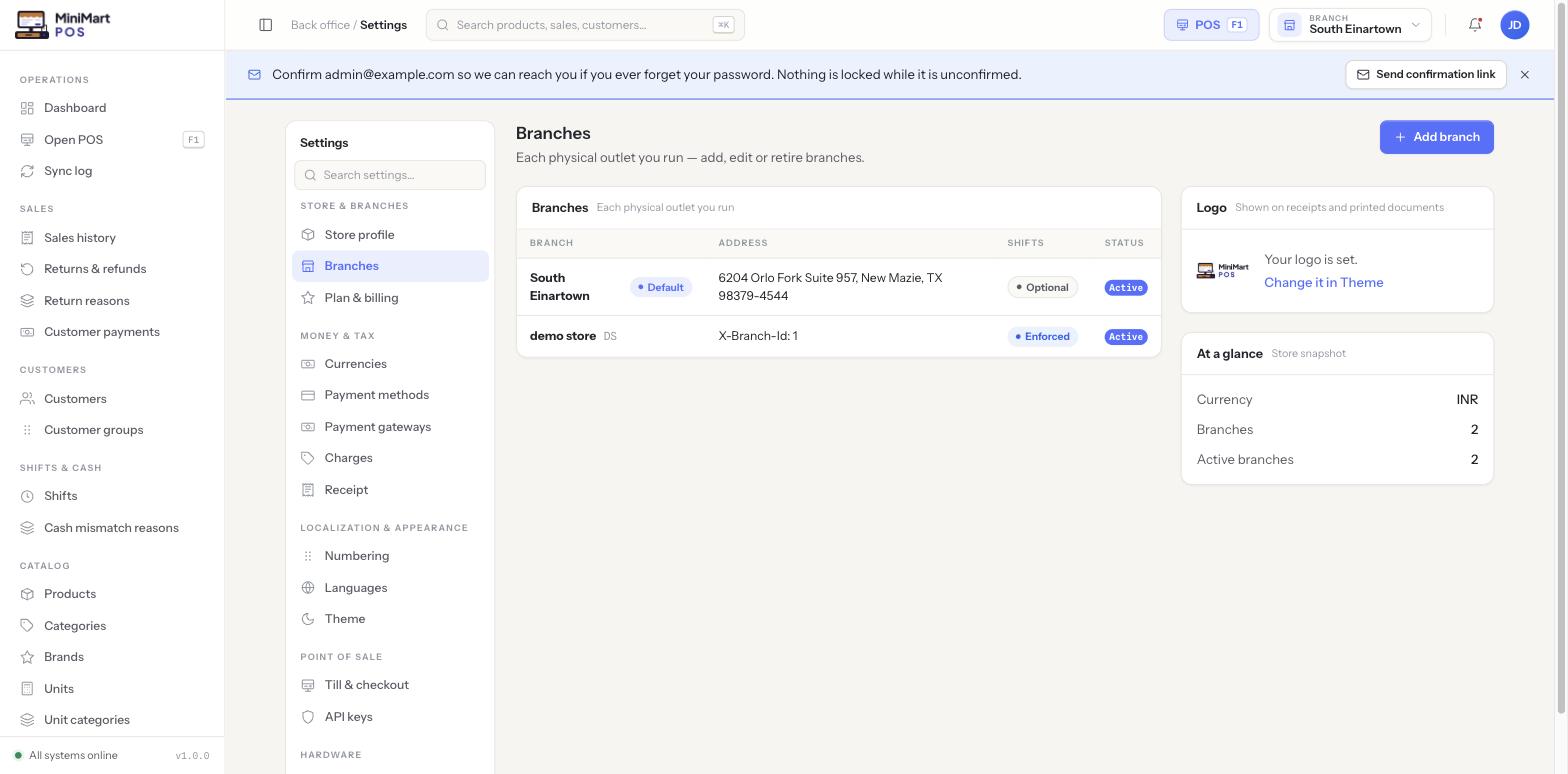
A MiniMart store can run one branch or many — a single shop, or a chain with several physical locations under the same account. Every branch has its own address, its own shift policy (Optional, meaning staff can sell without opening a shift first, or Enforced, meaning a shift must be open before a sale can ring up — see Shifts & cash drawer), its own counters/registers, and its own stock levels. One branch is marked Default, used as the store's fallback for store-wide defaults.
Why it's useful
Running more than one location only works if the things that should be shared actually are, and the things that shouldn't be shared actually aren't. MiniMart keeps the catalog — products, categories, brands and tax setup — store-wide: add a product once and every branch can sell it, instead of re-entering your whole catalog per location. What genuinely differs from branch to branch is stock quantity and, optionally, price — a product can be in stock at one branch and out at another, or priced slightly differently if you choose to override it there. This is why the Branches page is where you manage locations, while the product catalog itself lives in Products & variants regardless of how many branches you run.
Step by step
Add a branch
- Click Add branch
From Settings → Branches.
- Enter its name and address
This is what shows on receipts printed at that branch and throughout the back office wherever a branch is identified.
- Set its shift policy
Choose Optional or Enforced depending on whether you want to require a cashier to open a shift before selling at this branch.
- Save
The branch is active immediately and ready to have counters, staff access and stock set up.
Switch between branches
- Use the branch switcher in the top bar
Available to any staff member whose access isn't scoped to a single branch — see Staff & roles.
- Pick a branch
Most back-office screens — stock, shifts, counters, sales history — immediately scope to whichever branch you just selected.
What's shared vs. per-branch
| Shared store-wide | Separate per branch |
|---|---|
| Products, variants, categories, brands | Stock on hand / available quantity |
| Tax groups and components | Price overrides (optional) |
| Staff accounts and roles | Which branch(es) a staff member can access |
| Currency and store settings | Counters/registers, shift policy |
Branding a branch's receipts
The Logo card on this page shows your store's receipt logo — "No logo yet" means the shop name is printed instead, which is perfectly fine to leave as-is. Uploading a logo is done from Languages & theme, in the Theme section, and applies across the store rather than per branch.
Tips & best practices
- Set the shift policy deliberately per branch — a small single-till kiosk might run fine with Optional, while a busy multi-counter branch usually wants Enforced for accountability.
- Keep one branch marked Default even once you have several — it's the fallback the store relies on.
- Check the "At a glance" card's active branches count after retiring a branch, to confirm it actually came out of daily use.
- Remember the catalog is shared — if a product looks "missing" at one branch, check its stock level there rather than assuming it needs re-adding.
Notes & warnings
A product, category or tax setup created anywhere in the store is visible and sellable from every branch. Only its stock quantity, and optionally its price, vary branch to branch — see Products & variants.
Stock levels, shift and counter lists, and sales history all scope to whichever branch is currently selected in the top bar — if a number looks wrong, check which branch you're viewing before assuming data is missing.