
Registers (counters)
The physical tills at a branch — who's signed in at each one right now, and its printer and cash-drawer setup.
Overview
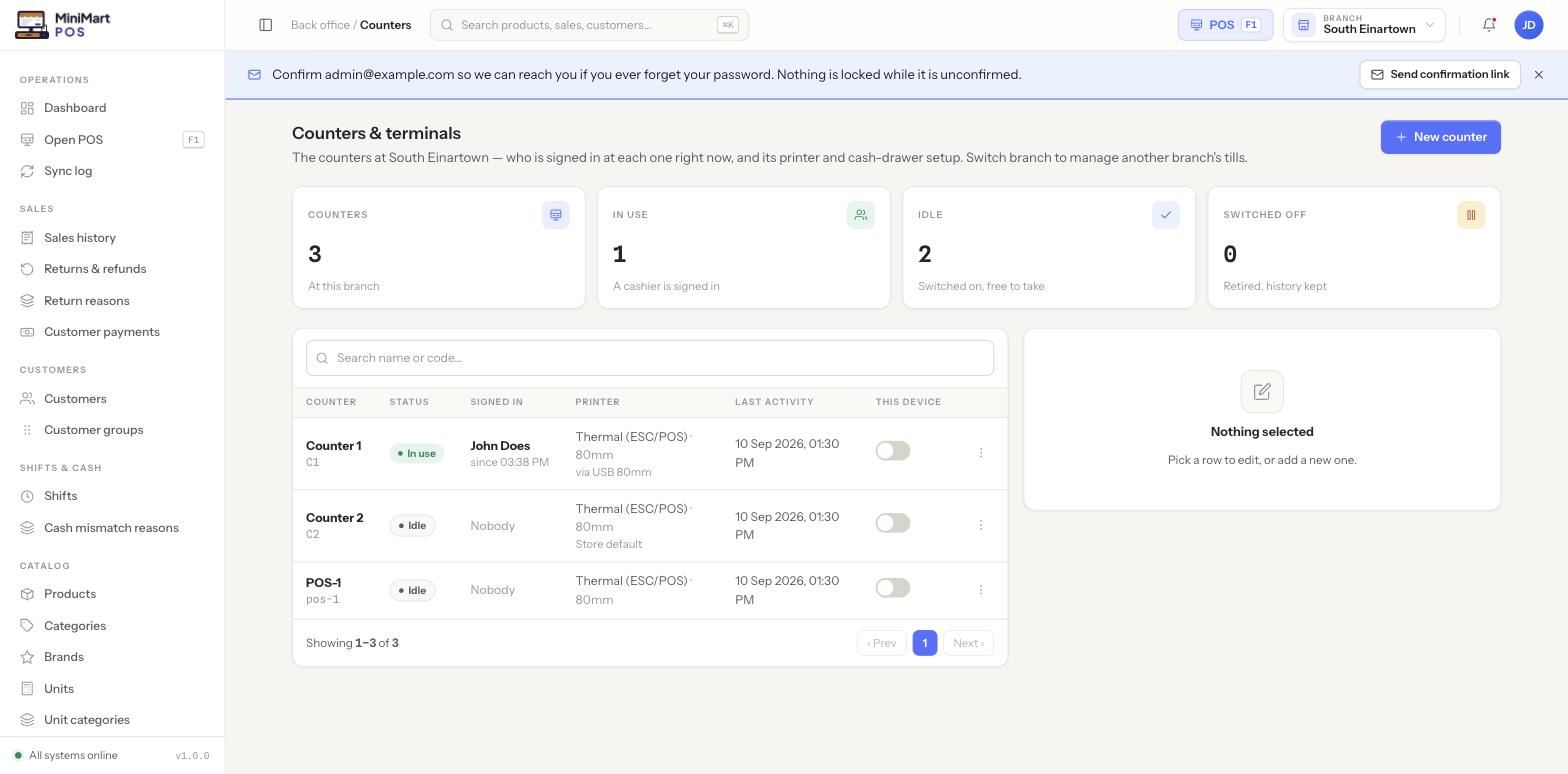
A counter is a specific physical till or register at one branch — it's distinct from a staff member or cashier, in the same way a cash register is a separate thing from the person standing behind it. This page lists every counter at the currently selected branch; switch the branch switcher in the top bar to manage a different branch's counters, since each branch has its own set. Each counter tracks whether it's currently In use (a cashier is signed into an open shift on it), Idle (switched on and free to take a shift), or switched off and retired (kept for history — old sales still reference it, but no one can sign into it again), along with which printer it's wired to and when it was last active.
Why it's useful
Once a shop runs more than one till, it needs a clear picture of which registers exist, which are actually in active use right now, and which have been retired rather than just forgotten about. Tying a printer to a specific counter means a receipt always comes out of the right physical printer without a cashier having to choose one each time, and the This device marker solves the practical problem of telling a particular browser or computer which till it is — essential for assigning a local print agent to the correct physical register.
Step by step
Add a new counter
- Switch to the right branch
Use the branch switcher in the top bar — counters belong to whichever branch is currently selected.
- Click New counter
Opens the new-counter form.
- Give it a name and code
A short code like C1 alongside a friendly name (e.g. "Counter 1") makes it fast to recognise in lists and on receipts.
- Assign a printer (optional)
Pick a specific printer and paper size, or leave it on Store default to use whatever the branch's default printer is. See Printers, scanner & scale.
- Save
The counter appears as Idle and ready for a cashier to open a shift on it.
Mark "This device"
- Open the counter you're physically at
From the counter row, use the This device toggle.
- Confirm
The browser/computer you're using is now associated with that counter — useful when a local print agent needs to know which till it's printing for.
Retire a counter
- Switch it off
A retired counter keeps every sale it ever rang up in history, but can't be signed into again — use this for a till you've physically removed rather than deleting its record.
Tips & best practices
- Use short, consistent codes (C1, C2…) rather than free-form names — they're quicker to read on a busy shift-open screen.
- Retire a counter instead of trying to delete it when hardware is decommissioned, so its sales history stays intact.
- Set "This device" on each physical workstation once, right after setting it up, so printing is correct from the first shift.
- Check the In use stat card at the end of the day — a counter still showing in use after close usually means a shift was never properly closed. See Shifts & cash drawer.
Notes & warnings
This list only ever shows the branch currently selected in the top bar. A counter created for one branch is not visible or usable from another — see Multi-branch for what is and isn't shared across branches.
Retiring a counter is meant to be a one-way step for decommissioned hardware. If you still need to use the till, leave it idle rather than switching it off.