
Staff & roles
Everyone who can sign in, and the reusable roles that decide what each of them can see and do.
Overview
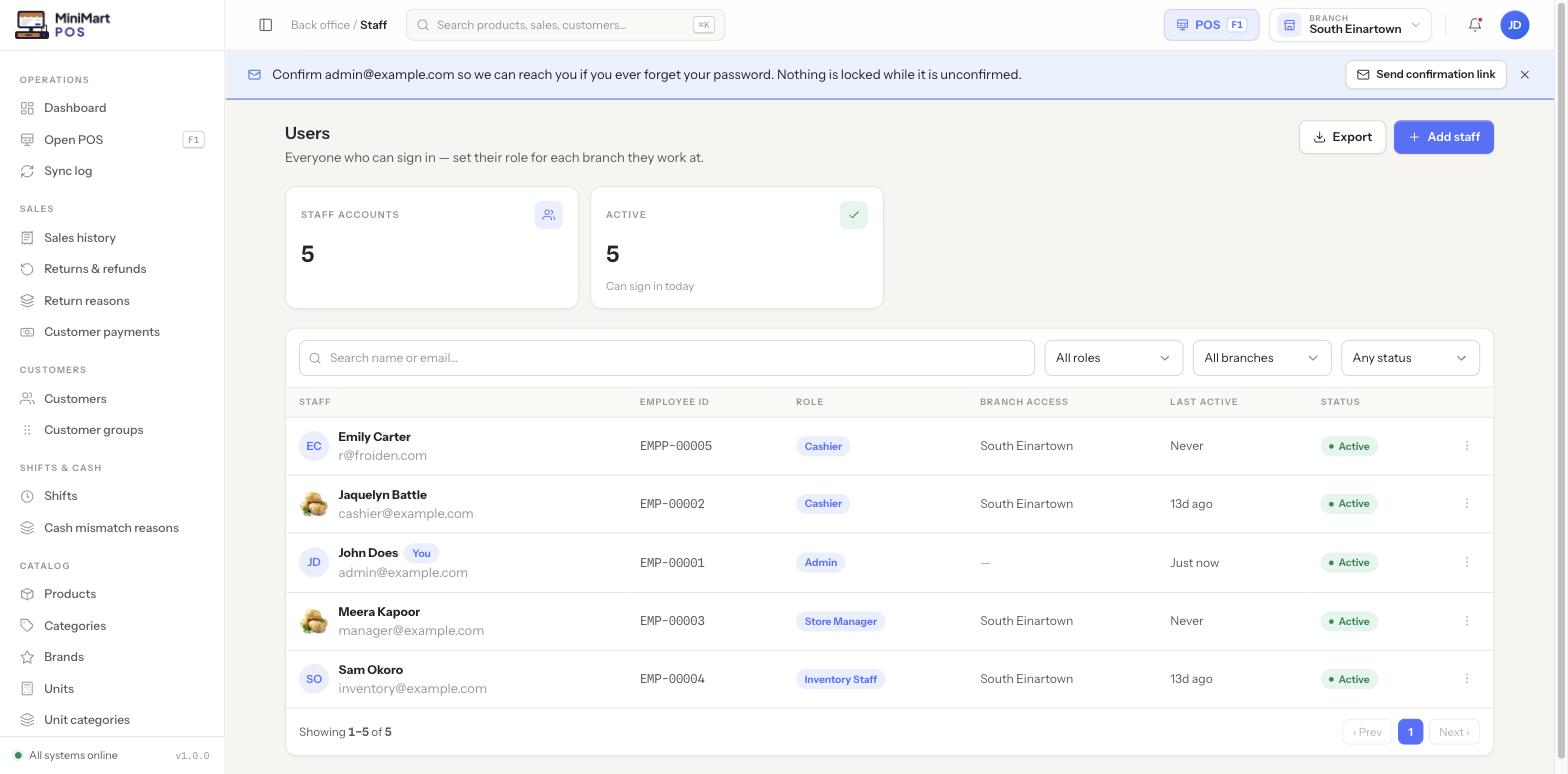
This area has two connected screens. Staff is the list of everyone who can sign in — their login, their role, which branch(es) they can access, and whether they're currently active. Roles & permissions is where those roles themselves are defined: a role is a named, reusable bundle of permissions, and every staff member holds exactly one role. Change what a role can do, and every staff member holding it updates immediately — you never have to open each person's account individually to change their access.
Why it's useful
A small shop might only need one role for every cashier; a multi-branch store needs clear lines between who can process a sale, who can issue a refund, who can see cost prices, and who can touch payment settings at all. Roles let you set that policy once and apply it consistently — and because branch access is set per staff member rather than per role, the same "Cashier" role can restrict one person to a single branch while leaving another free to work anywhere, without needing two separate roles.
Staff — step by step
Add a staff member
- Click Add staff
From the Staff list.
- Enter their details
Name and a login — email and password, or a PIN for quick till sign-in, depending on how your store is configured.
- Assign a role
Pick one of the built-in roles or a custom one your store has created. See Roles & permissions below.
- Set branch access
Leave it unrestricted so they can sign in and work at any branch, or scope them to one or more specific branches. A branch-scoped staff member only sees that branch's data and can only sign into counters there — see Multi-branch.
- Save
They appear in the Staff list immediately and can sign in right away.
Read the Staff list
- Employee ID — a stable identifier (e.g.
EMP-00001) separate from their name, useful once two staff share a first name. - Role pill — their current role at a glance (e.g. Cashier, Admin).
- Branch access — the branch name, or — for a staff member with access to every branch.
- Status — whether the account can currently sign in; your own row is marked with a small You tag.
Use Export for an offline copy of the staff roster, and the search box plus the role/branch/status filters to narrow a long list quickly.
Roles & permissions
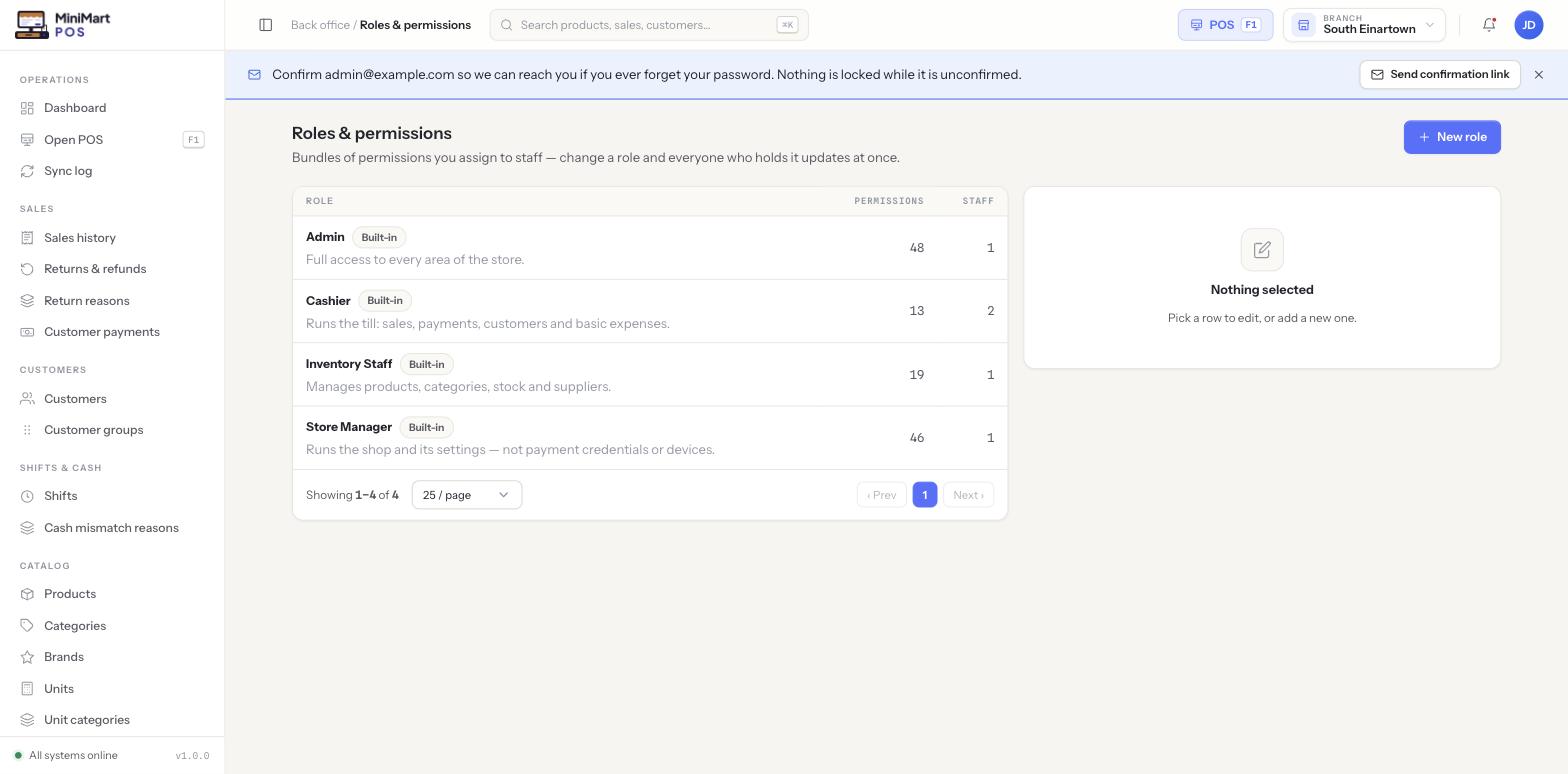
Every store ships with four built-in roles, each tagged Built-in:
- Admin — full access to every area of the store (48 permissions in the default build).
- Cashier — runs the till: sales, payments, customers and basic expenses (13 permissions).
- Inventory Staff — manages products, categories, stock and suppliers (19 permissions).
- Store Manager — runs the shop and its settings, but not payment credentials or devices (46 permissions).
Built-in roles can be edited (their permission list is not locked) or cloned into a custom role with a new name — useful when you want "Cashier, but can also see cost prices" without changing what every other cashier can do. You can also build an entirely new custom role from a blank permission set.
Edit or create a role
- Pick a row, or click New role
Selecting an existing role opens its permission editor in the right-hand panel; before anything is selected, the panel just says "Nothing selected — pick a row to edit, or add a new one."
- Name it and pick a description
The description is what shows in the role list, so keep it specific about what the role is for.
- Check or uncheck permissions
Permissions are grouped by area (sales, inventory, customers, settings, etc.) so you can grant or remove a whole area at once, or fine-tune individually.
- Save
Every staff member currently holding this role is updated immediately — no need to touch their individual accounts.
Tips & best practices
- Prefer cloning a built-in role over editing it directly if you're not sure the change should apply to every holder of that role.
- Keep branch access as narrow as the job actually requires — a cashier who only ever works one counter at one branch should be scoped to that branch.
- Review the staff count shown against each role occasionally — a role with zero staff left can usually be cleaned up.
- Use employee ID, not name, when referencing a staff member in external records (payroll, schedules) — names collide, IDs don't.
Notes & warnings
Reassign every staff member off a role first — either to another existing role or a new one — before you can delete it.
Leaving a staff member's branch access unrestricted is a deliberate "can work anywhere" setting, not an unfinished field — it's what lets an owner or a floating manager sign into any branch's counters.