
Store profile & plan
Your store's identity on paper — the details that print on invoices and tax filings — plus a read-only look at the subscription plan your store is running on.
Overview
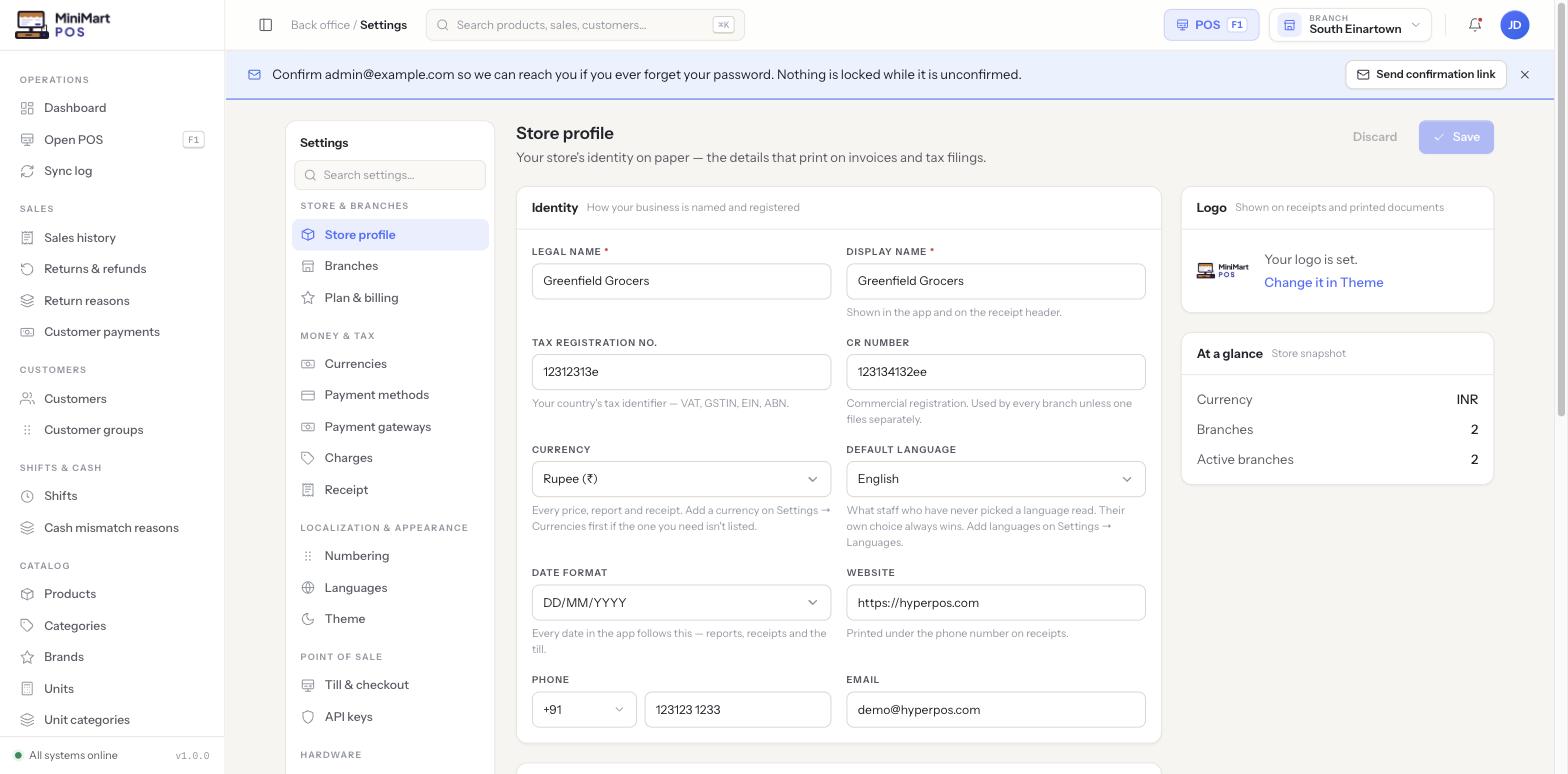
Store profile holds the legal and display identity of your business: the name on your tax filings, the name customers see on their receipt, your tax registration and commercial registration numbers, your store's base currency, the default language staff see until they pick their own, your date format, and your public website. It's the one page every invoice, credit note and tax report ultimately reads from.
Why it's useful
Getting this page right once means every document the store ever prints is correct by default — the right legal name and tax number on an invoice, the right currency symbol on every price, the right name on the receipt header. It also doubles as the store-wide default: a new branch inherits the store's currency and date format unless it has a genuine reason to differ.
Identity
| Field | What it controls |
|---|---|
| Legal name | The registered business name — used on tax filings and anywhere a formal legal name is required. |
| Display name | Shown in the app and on the receipt header — this is the name customers actually see at the till. |
| Tax registration no. | Your country's tax identifier (VAT number, GSTIN, EIN, ABN, etc.) — printed on invoices and used in tax reports. |
| CR number | Commercial registration number. Used by every branch unless one files separately. |
| Currency | The store's active (base) currency — every price, report and receipt is shown in this currency store-wide. See Money & tax settings for how additional currency definitions relate to this one active choice. |
| Default language | What staff see until they pick a language of their own in their profile — see Languages & theme. |
| Date format | How dates are displayed across the app and on printed documents. |
| Website | Your store's public web address, shown on receipts and documents where configured. |
Logo
The Logo card controls the image shown on receipts and printed documents. If no logo has been uploaded, the shop name is printed instead of an image, so a store can ship without ever uploading one. The actual upload control — along with a separate dark-mode logo and a favicon — lives in Languages & theme → Theme, not on this page; Store profile just shows whether one is currently set.
At a glance
A quick summary card showing the store's active currency, its total branch count and how many of those branches are currently active. It's a read-only snapshot — manage the branches themselves on the Multi-branch page.
Plan & billing
Plan & billing is the second page in this settings group. It's a read-only summary of the store's own SaaS subscription — the plan MiniMart's platform operator has put this store on — not something a store admin edits directly here. It shows:
- Which plan the store is subscribed to, and usage against that plan's limits — for example how many branches and staff members exist against the plan's allowance.
- Which modules the plan includes. Reports, Vendor/Purchasing and Expenses are explicitly gated per plan: a store on a plan without the Vendor/Purchasing module simply won't see Purchasing in its own sidebar at all, rather than seeing it greyed out.
- The store's trial or subscription expiry date, and an upgrade path to move to a higher plan.
The plan and package definitions themselves — what each plan costs, what limits and modules it includes — are owned by the platform operator in the superadmin console, not by any individual store.
Tips & best practices
- Fill in the tax registration and CR numbers before your first real invoice goes out — retrofitting them onto documents already shared with customers is awkward.
- Keep Display name short and recognisable — it's what prints at the top of every receipt.
- Check Plan & billing's usage figures before adding a new branch or staff member if you're near your plan's limits, to avoid a surprise block at the point of creation.
- If a feature you expect (Reports, Purchasing, Expenses) is missing from the sidebar entirely, check here first — it's very likely a module your current plan doesn't include, not a bug.
Notes & warnings
The Settings area as a whole is gated by three separate permission tiers, not one. Manage Settings covers the everyday ~15 pages, including this one. Manage Sensitive Settings is required separately for anything holding real credentials — payment gateways and API keys (see Money & tax settings and Till, checkout & API keys). Manage Hardware covers printers, scanner and scale (see Printers, scanner & scale). A Store Manager role typically holds the first tier but not the other two — don't assume manager access reaches a payment gateway screen just because it reaches ordinary settings.
You can't change your plan, limits or modules from this screen — it only shows what the platform operator has configured for your subscription. To upgrade, use the upgrade path shown on the page, which hands off to the platform's own billing flow.