
Money & tax settings
Every setting that decides how money is counted, accepted and printed in your store — currencies, tender types, your own payment gateways, checkout charges and receipt content.
Overview
This settings group covers five related pages: Currencies, Payment methods, Payment gateways, Charges and Receipt. Together they decide what currency your prices are shown in, what a cashier can tender at checkout, how your store collects money from its own customers online, what extra charges can be added to a sale, and what prints on the receipt itself.
Why it's useful
Money settings are easy to get subtly wrong in a way that only shows up weeks later — a currency with the wrong decimal places, a payment method with no reference field when your bank statement needs one to reconcile, a gateway credential pointed at the wrong account. Getting this group right once, before you take real payments, avoids having to correct historical sales afterwards.
Currencies
A store can hold several currency definitions at once — useful for reference or multi-currency reporting — but only one is marked active at any time, and that active currency is the one actually used for prices, receipts and reports store-wide. This page manages the list of definitions (add, edit decimals, delete); switching which one is active happens on Store profile, not here.
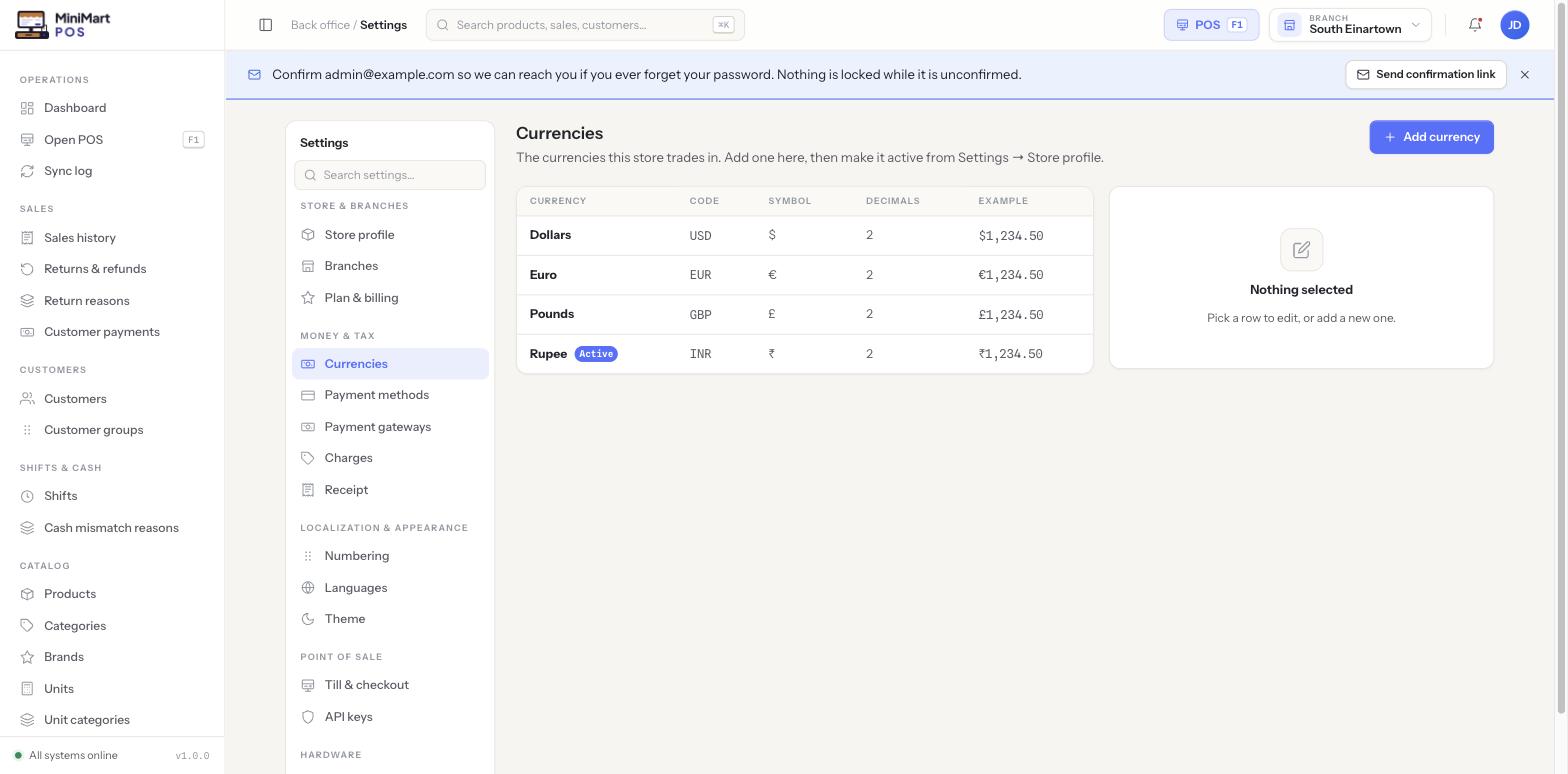
| Field | What it controls |
|---|---|
| Currency name / Code / Symbol | How the currency is labelled and displayed, e.g. Rupee / INR / ₹. |
| Decimals | How many decimal places prices and totals are shown and rounded to for this currency. |
| Example formatted amount | A live preview, e.g. ₹1,234.50, so you can check the formatting before making it active. |
Payment methods
The list of tender types your till accepts at checkout — cash and card come built in, and you can add your own custom offline methods for anything else your store takes, such as "Mobile Money" or a local wallet. A custom method can require a reference field, so the cashier is prompted to capture a transaction ID or voucher number at the point of sale, which makes reconciling that method afterwards much easier. See Taking payments for how these methods actually appear to the cashier at checkout, including split tender across several methods on one sale.
Payment gateways
This is your store's own online payment gateway — credentials for a provider such as a Razorpay/Stripe/PayPal-style service — used so your store can accept online or card-not-present payments from your own customers, with the money flowing into your store's own account.
This page is one of two layers, and they never share credentials. The gateway configured here collects payment from your store's customers at checkout. The platform operator's own gateways — configured in the superadmin console — collect your subscription fee from your store. A problem with one never touches the other, and a store admin never sees or edits the platform's own gateway credentials.
Charges
Configurable extra line-item charges that a cashier can add at checkout — a packaging fee, a delivery charge, a bottle deposit, or anything else your store occasionally needs to add on top of the cart total. Once defined here, a charge becomes available to add from the POS screen; see The POS screen for how a cashier actually applies one during a sale.
Receipt
Controls what prints on the receipt itself: header and footer text (for example a return policy line, a thank-you message, or your tax registration number), and which optional fields appear. The receipt's logo is uploaded once, store-wide, and lives under Languages & theme → Theme rather than on this page — this page only controls the surrounding text and layout choices. For the physical printer this content is sent to, see Printers, scanner & scale.
Tips & best practices
- Set up Currencies and pick your active currency in Store profile before entering any product prices — changing it afterwards doesn't retroactively convert existing prices.
- Require a reference field on any custom payment method you expect to reconcile against a bank or wallet statement.
- Test a real transaction against a new payment gateway in its provider's sandbox mode before going live with real customer payments.
- Keep receipt footer text short — very long footers can push a receipt past common thermal-printer paper lengths.
Notes & warnings
Payment gateways hold real, live credentials, so this page — unlike most of Settings — requires the separate Manage Sensitive Settings permission, not just Manage Settings. A Store Manager who can edit Currencies or Receipt may not be able to reach this page at all. See Store profile & plan for the full permission-tier breakdown.