
Products & variants
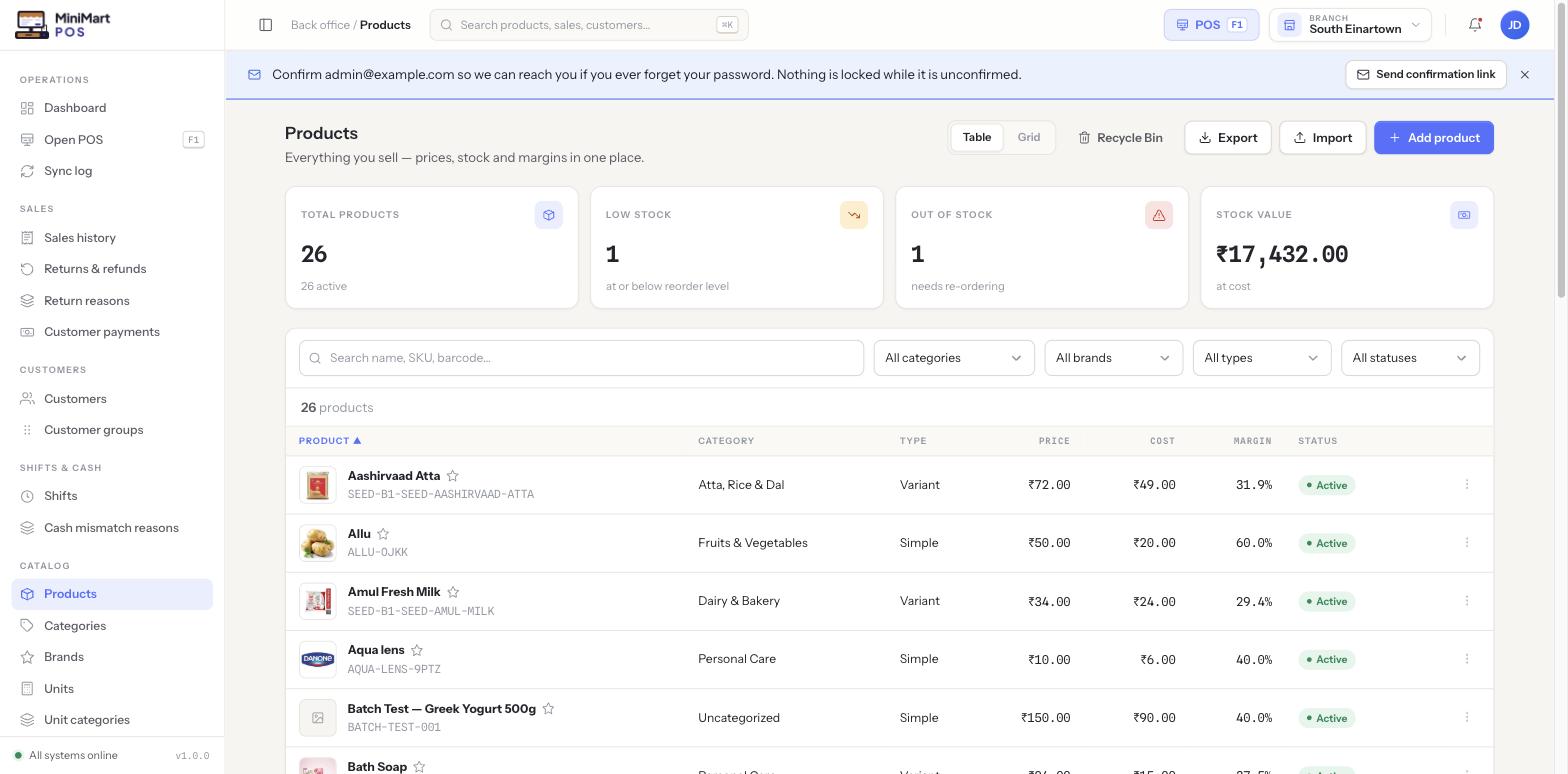
Everything you sell, with its price, cost, tax, stock behaviour and how it should appear at the till — in one record.
Overview
Every item you sell is a product. A product is either Simple — one price, one SKU, one barcode — or it has Variants, where a shared product (say, a T-shirt) is sold in several combinations of options like size and colour, and each combination gets its own SKU, barcode, price and stock count. Products also carry a Sold by setting: Per unit for whole-number quantities (each, box, pack), or scale-driven for items priced by weight, where a connected weighing scale sets the quantity directly rather than the cashier typing it in.
Why it's useful
The product record is the single source of truth the rest of the app reads from: the POS grid shows its name, price and image; inventory reads its stock-tracking and batch settings; tax reads which tax group applies; and reports roll up margin from its price and cost. Getting a product set up correctly once — rather than patching it page by page later — is what makes every other screen behave correctly.
Step by step
Add a new product
- Start a new product
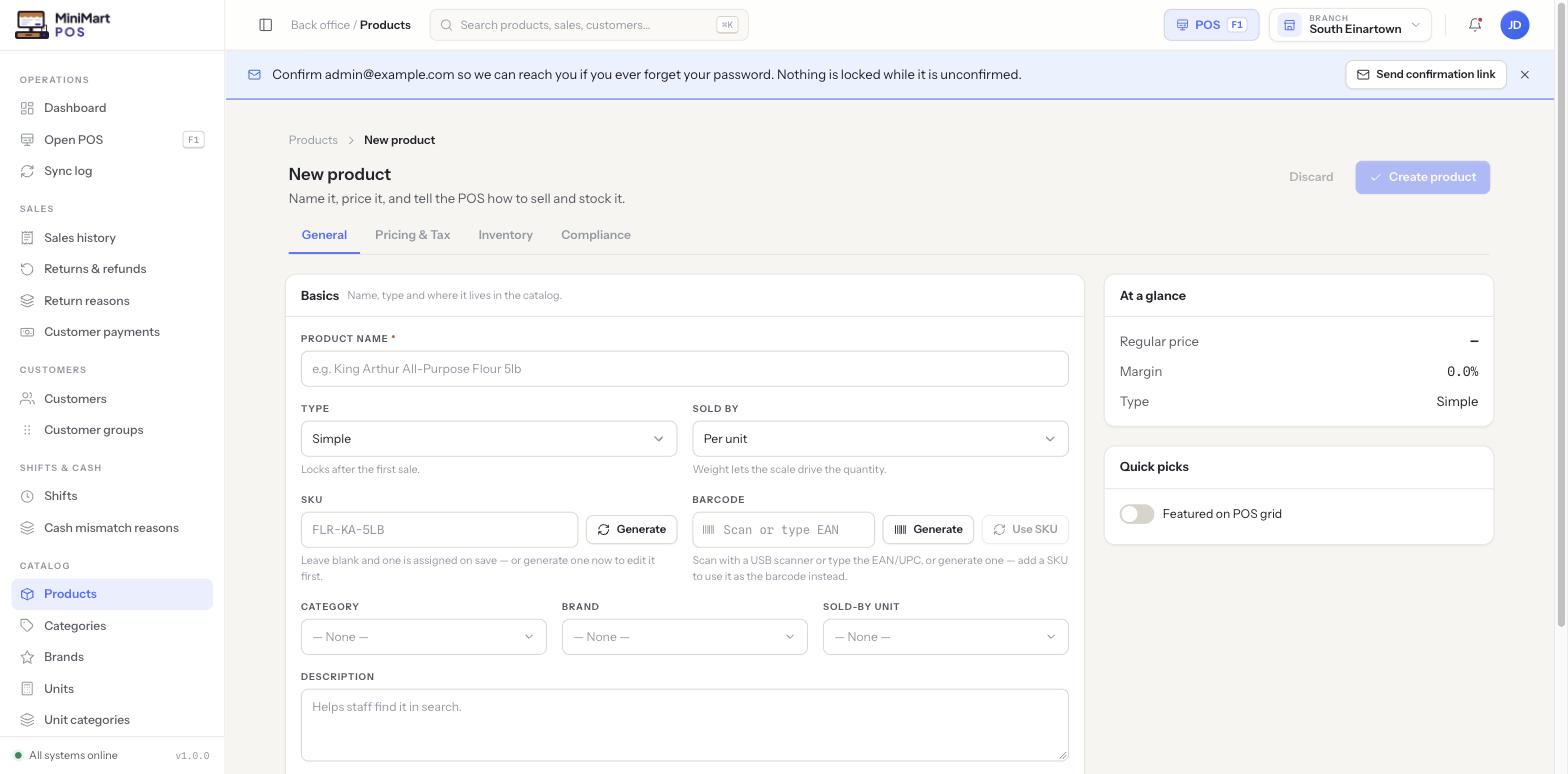
From the Products list, click Add product. The form opens on the General tab.
- Name it and choose a type
Enter the product name, then choose Simple or Variant under Type. This locks after the first sale is recorded against it, so decide up front — switching a simple product to variants later isn't something you want to do with sales history already attached.
- Choose how it's sold
Sold by defaults to Per unit. Switch it to weight only for scale-priced items — see Printers, scanner & scale for how the scale feeds a live reading into the cart.
- Set SKU and barcode
Type them in directly, scan a barcode into the field with a handheld scanner, or click Generate for an auto-assigned SKU/barcode. Use SKU copies the SKU into the barcode field for shops that don't print separate barcodes.
- Set pricing and tax
Switch to the Pricing & Tax tab — see below.
- Set inventory behaviour
Switch to the Inventory tab — see below.
- Add compliance details if needed
Switch to the Compliance tab for regulated items — see below.
- Create the product
Click Create product. It's immediately available at the POS and in the catalog (unless marked inactive).
Pricing & Tax tab
- Set the regular price
What customers are charged. The At a glance card on the right recalculates margin % live as you type price and cost.
- Set the cost price
What you pay to acquire or make the product — used only for the margin calculation and cost-based reports, never shown to customers.
- Choose a tax group
Pick a specific tax group for this product, or leave it to inherit from the product's category (which in turn can inherit the store default). See Tax setup for how that cascade works.
Inventory tab
- Decide whether this product tracks stock
Some items (a service fee, a rounding line) don't need stock tracking at all. Most physical products should have it on.
- Decide whether it tracks batches & expiry
Turn this on for anything with a lot number or a use-by date. MiniMart then applies FEFO (first-expiry-first-out) picking at the till and keeps full multi-batch sale traceability — see Stock, low stock & batches for the full batch workflow.
- Set the reorder / low-stock threshold
Leave it on the store-wide default, or override it per product — useful for a fast-moving item that needs reordering sooner than everything else. The store-wide default itself lives in Stock, low stock & batches.
Compliance tab
For regulated categories — pharmacy items are the main example — this tab holds a regulatory/HSN-style code and free-text storage condition notes (e.g. "Keep refrigerated, 2–8°C"). These feed the Rx soft-warning and traceability features cashiers see at the till for flagged products; leave them blank for ordinary retail goods.
Variants
When Type is set to Variant, you build one or more option groups (e.g. "Size" with values Small/Medium/Large, "Flavor" with Vanilla/Chocolate) and MiniMart generates a variant row for every combination. Each variant then gets its own SKU, barcode, price and stock — so a Large Chocolate can be priced and stocked independently of a Small Vanilla, under the one shared product name and image.
Quick picks and visibility
Toggling Featured on POS grid (in the Quick picks card) pins a product to the fast-access grid cashiers see first at the till — reserve it for your real bestsellers so the grid stays useful rather than cluttered. A product can also be marked inactive to hide it from sale everywhere (POS, catalog browsing) without deleting its history — existing sales and reports referencing it are untouched.
Bulk tools
Use Import to bring in a whole catalog from CSV/Excel (with a column-mapping and preview step, the same pattern as customer import), and Export to pull the catalog back out for backup or editing in bulk. Bulk product images can also be uploaded in one pass rather than attaching a photo to each product individually. Deleted products go to the Recycle Bin rather than disappearing immediately, so an accidental delete can be undone.
Tips & best practices
- Decide Simple vs Variant correctly before the first sale — the type locks once sales history exists against the product.
- Set cost price honestly, even if it's an estimate — margin % throughout reports is only as accurate as this number.
- Only feature genuine bestsellers as Quick picks; an overcrowded POS grid slows cashiers down rather than speeding them up.
- Turn on batch & expiry tracking for anything perishable or regulated — retrofitting it after stock is already on the shelf is much harder than setting it up from day one.
- Use Export regularly as a catalog backup, especially before a large bulk import.
Notes & warnings
Once a product (or its variant) has a recorded sale, you can no longer switch between Simple and Variant. Plan variants up front for anything you expect to sell in more than one size, colour or flavor.
Marking a product inactive hides it from sale immediately but keeps every historical sale, stock movement and report entry intact. Use inactive for seasonal or discontinued items you might bring back; use Recycle Bin delete only for records you genuinely never created on purpose.