
Tax setup
Three simple layers — components, groups and classifications — that together decide how much tax is added (or included) on every sale.
Overview
MiniMart's tax model has three tiers, from the smallest building block up:
- Tax components — individual named rates, such as a CGST/SGST-style split or a single flat VAT rate.
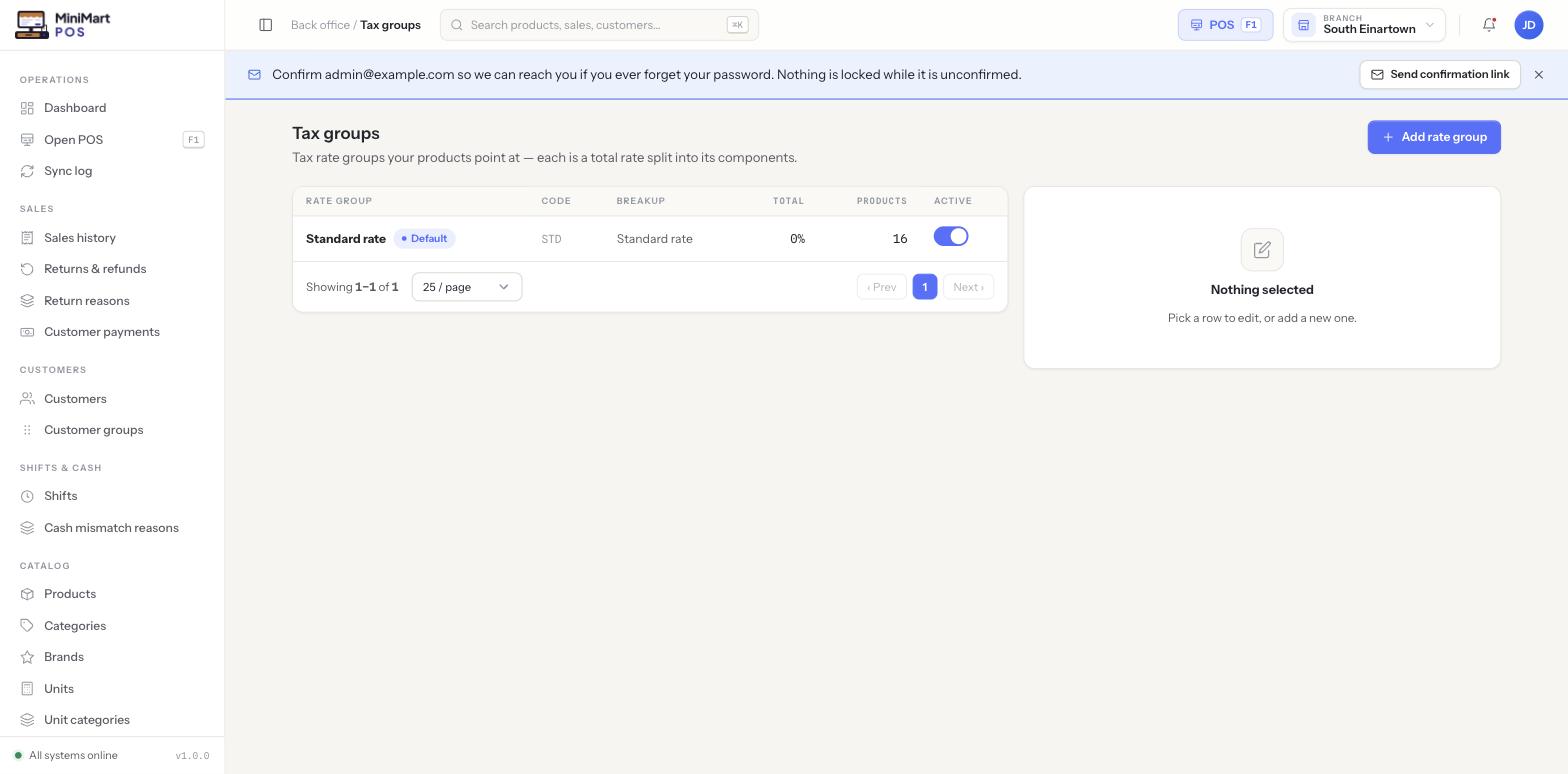
- Tax groups — a named bundle of one or more components that sums to a total rate (e.g. "Standard rate", made up of two 9% components for an 18% total, or a single flat component). This is what products and categories actually point at.
- Tax classifications — used to mark a product as zero-rated, exempt, or otherwise under a special regime where the normal group calculation doesn't apply.
Products and categories never set a raw percentage directly — they always point at a tax group, and that group's components are what gets calculated and itemized on the receipt.
Why it's useful
Splitting rate (component), bundle (group) and exception (classification) into three layers means you set up the actual percentages once and then every product or category simply points at the right bundle — change a component's rate centrally and every product using a group built from it recalculates automatically, rather than hunting down every product that had the old rate typed in individually.
Step by step
Set up a tax group
- Open Tax groups and click Add rate group
Give it a name (e.g. "Standard rate") and a short code (e.g. "STD").
- Add one or more components
Each component carries its own name and percentage. A single-component group is a flat rate; multiple components (like a CGST + SGST split) sum to the group's Total.
- Mark it Default if appropriate
The default tax group is what new products and categories use automatically unless a different group is explicitly chosen.
- Save
The group is now available on the product form's Pricing & Tax tab and on category tax overrides.
Apply it to products and categories
- Set it on a category
Open a category in Categories, brands & units and choose a tax group override, or leave it on "Inherited" to follow the parent category or the store default.
- Set it on a product (optional)
A product's own Pricing & Tax tab can set its own tax group directly, overriding whatever its category would otherwise cascade down to it — useful for the occasional exception inside an otherwise uniform category.
Tax classifications
Where a product needs to sit entirely outside the normal rate cascade — genuinely zero-rated, tax-exempt, or under a special regime your jurisdiction recognizes — assign it a tax classification instead of (or alongside) its tax group. This keeps the exception explicit and reportable, rather than quietly setting its tax group's rate to zero, which would be indistinguishable from "nobody configured this yet."
Inclusive vs exclusive pricing
Whether the prices you type into products already include tax, or tax is added on top at checkout, is a store-wide setting — see Money & tax settings for where that switch lives and how it affects receipt line items.
Tips & best practices
- Set up components and groups before adding products in bulk — assigning the right group during import or product creation is far less work than correcting hundreds of products afterward.
- Keep one group marked Default so every new product and category has a sane tax rate from the moment it's created, even before anyone remembers to set one explicitly.
- Use classifications for genuine exemptions, not as a workaround for "we haven't decided the rate yet" — a missing rate and a deliberate exemption should never look the same in reports.
- Name groups and codes the way your tax authority or accountant expects them (e.g. matching your filing categories) — it makes your exported reports immediately usable without relabeling.
Notes & warnings
Editing a tax component's percentage immediately changes the rate every product using that group's tax calculates going forward. It does not rewrite tax already recorded on historical sales — those stay exactly as they were charged at the time.
A product's effective tax group is: its own override, if set — otherwise its category's override, if set — otherwise the next category up the tree — otherwise the store default. "Inherited" in the Categories table just means that particular level hasn't set its own override.