
Categories, brands & units
The scaffolding behind your product catalog — how products are grouped, branded, measured, and labelled on the shelf.
Overview
Four settings screens sit behind every product: Categories group products for browsing, reporting and tax cascade; Brands give you a flatter tag mainly used for filtering; Units of measure (and the unit categories that group them) decide what a product's "Sold by" dropdown offers; and Print labels is where you print barcode or shelf labels for one product or a whole batch of them. All four are catalog-wide — set once per store, used by every branch.
Why it's useful
A clean category tree and a consistent set of units means your products stay fast to create (pick a category and most of the tax and unit decisions are already made for you), your POS grid stays easy to browse, and your reports can roll sales up by category or brand instead of drowning in individual SKUs.
Categories
Categories are hierarchical — a "Beverages" category can have "Soft Drinks" and "Juices" underneath it — and support both a flat Table view and a Tree view for managing the hierarchy visually. Each category can set its own tax group, which cascades down to every product inside it (and to its sub-categories) unless a product or a lower category explicitly overrides it. The Categories table shows Inherited in the Tax group column when a category hasn't set its own override and is simply following its parent (or, at the top, the store's default tax group).
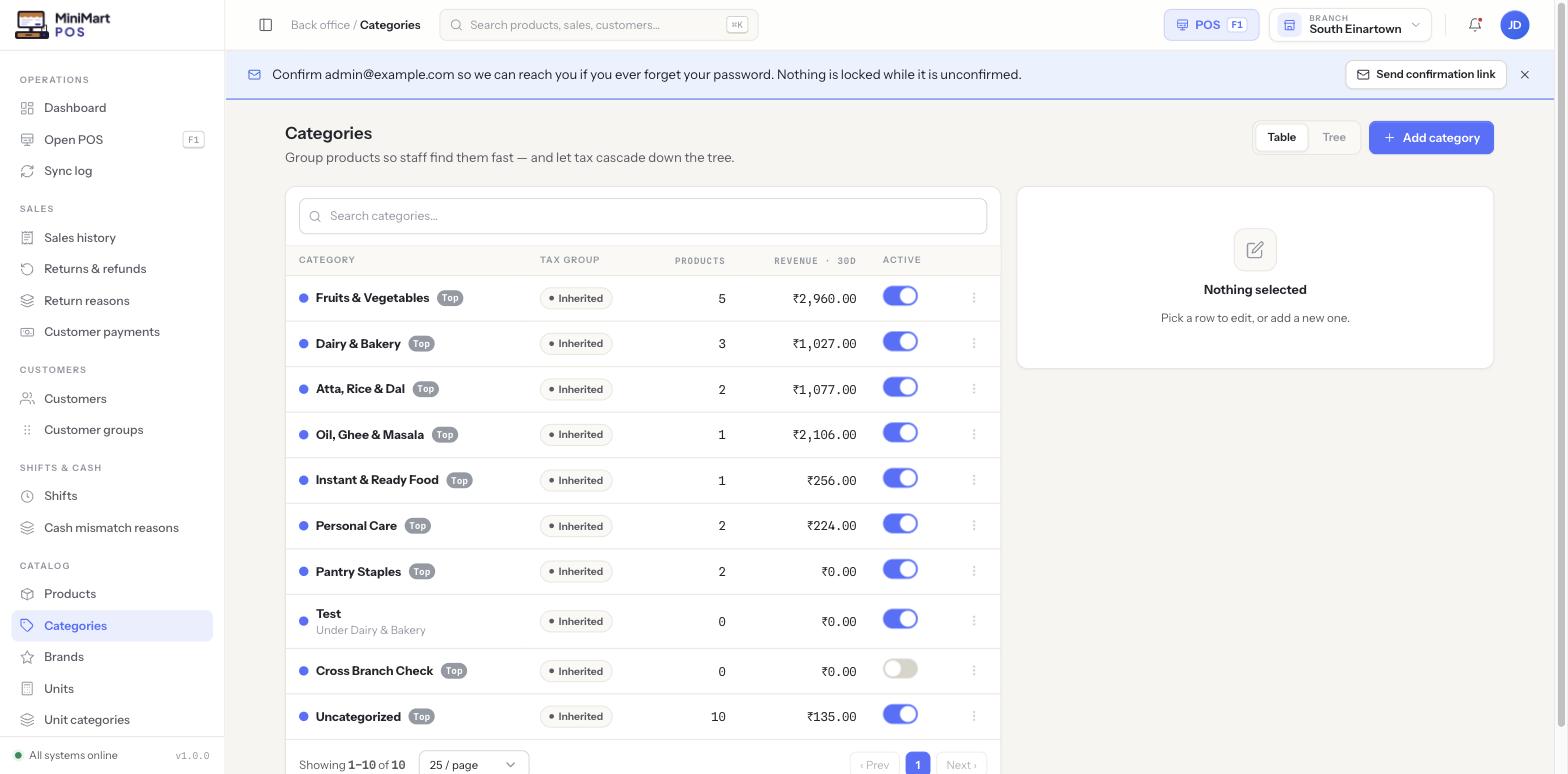
Add or edit a category
- Click Add category
Or select an existing row to edit it in the right-hand panel.
- Name it and choose a parent
Leave the parent blank for a top-level ("Top") category, or pick an existing category to nest underneath it.
- Set a tax group override (optional)
Leave it inherited to follow the parent/store default, or pick a specific tax group if this category needs its own rate.
- Toggle Active
Turning a category off hides it (and its products' grouping) from new assignment while keeping existing products intact.
Brands
Brands are a simpler, flat list — useful when you stock multiple manufacturers of the same kind of product (e.g. several soft-drink brands under one "Beverages" category) and want to filter the Products list, the POS, or reports by brand rather than by category alone. Brands don't carry tax or hierarchy — they're purely an organizing and filtering tag.
Units of measure
Units (Kilogram, Piece, Liter, Dozen, and so on) are what populate a product's Sold by dropdown on the product form. Unit categories group units that can convert between each other — for example a "Weight" unit category containing Kilogram and Gram lets a scale-priced product report its quantity in whichever unit makes sense while staying convertible for reporting and stock purposes. Set up your unit categories before adding scale-driven products, since that's what makes the weighing-scale integration (see Printers, scanner & scale) report a sensible quantity rather than a raw, unconvertible number.
Print labels
Print labels is a dedicated screen for producing barcode or shelf labels, for a single product or a whole batch at once — pick the products (or a category to pull many in together), choose a label size, how many copies of each, and which fields print on the label (name, price, barcode, unit). It's the fastest way to relabel shelves after a price change or to print labels for a freshly received stock delivery before it goes onto the shelf — see Purchase orders for receiving stock in the first place.
Tax groups — the piece category assignment leans on
A tax group total and its components live on a separate screen covered in full in Tax setup — set those up first, since Categories (and Products) only ever point at a tax group that already exists; they don't define rates themselves.
Tips & best practices
- Build your category tree before importing a large product catalog — it's much easier to assign categories during import than to re-categorize hundreds of products afterward.
- Set a tax group at the top-level category and let it cascade; only override lower down for genuine exceptions (e.g. a zero-rated sub-category inside an otherwise standard-rated department).
- Keep brand names consistent (watch for near-duplicates like "Coca Cola" vs "Coca-Cola") — inconsistent brand tags silently split your brand-level reports.
- Set up unit categories for anything convertible (weight, volume) before adding the products that use them, so Sold by offers the right choices from day one.
- Reprint labels any time a price changes — a shelf label showing the old price is a common source of till disputes.
Notes & warnings
Categories, brands and units are shared across every branch of your store — only stock levels and price overrides vary per branch. Deactivating a category or brand affects every branch at once.
Turning a category or brand's Active toggle off removes it from new product assignment but keeps it attached to existing products and historical reports — switch it back on if you need to assign it again.