
Purchase orders
Stock you've ordered in — tracked from draft, through receiving, to the supplier's bill.
Overview
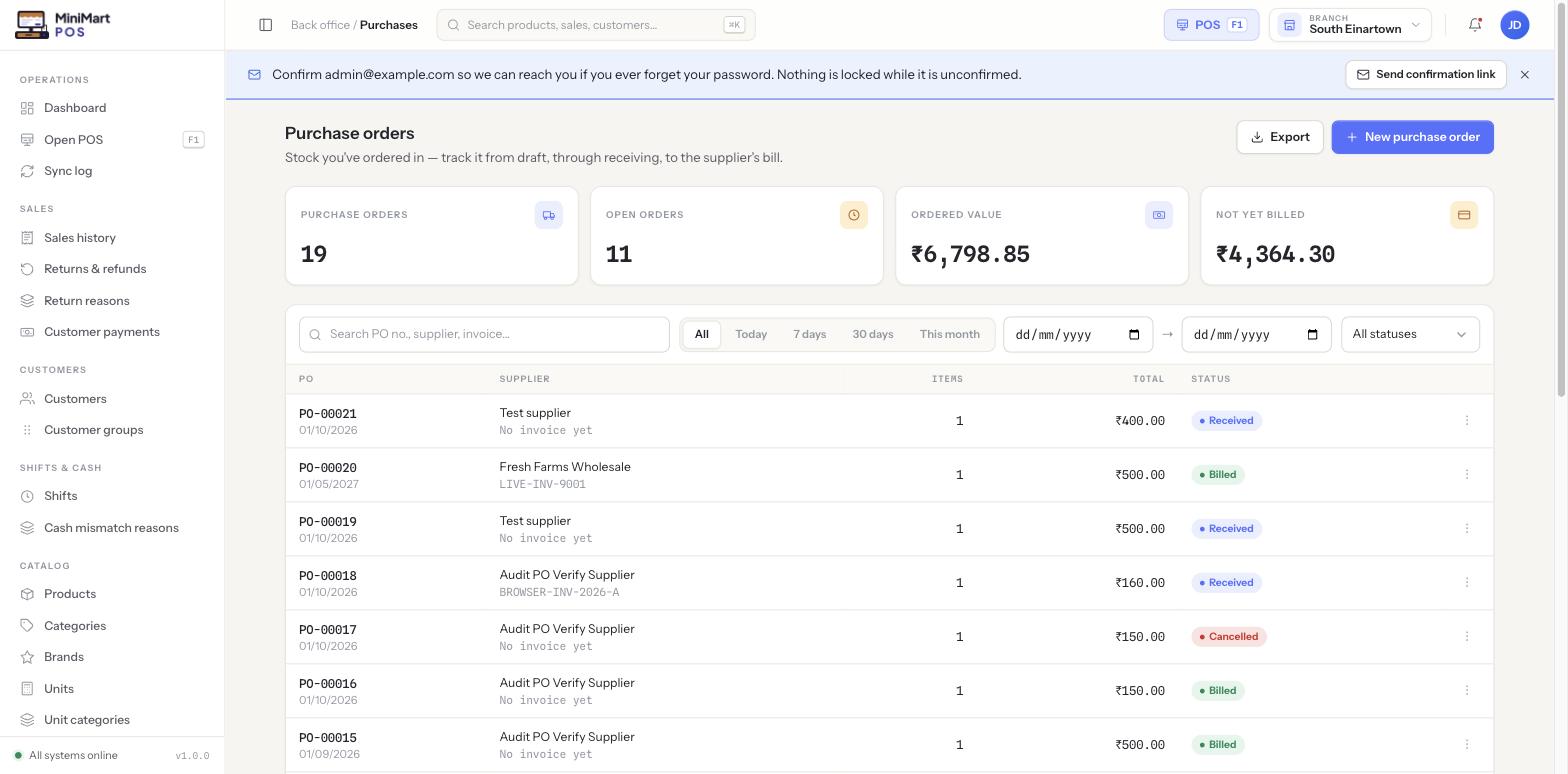
A purchase order (PO) is a record of what you've ordered from a supplier — which products, how many, and at what cost. A PO moves through a simple lifecycle: Draft (still being put together) → Ordered (sent to the supplier) → Received (goods arrive) → Billed (the supplier's own invoice is recorded against it, see Purchase bills) — or Cancelled at any point before receiving. Crucially, a PO existing and being "Ordered" does not touch your inventory at all; only the receiving step adds stock.
Why it's useful
Keeping a record of what you've ordered — separately from what's actually arrived — means you always know what's still in transit, what's overdue, and whether a delivery matches what you asked for. Separating "ordered" from "received" from "billed" is also what lets the Suppliers and Purchase bills screens tell you accurately what you actually owe: a PO alone creates no payable, only a bill does.
Step by step
Create a purchase order
- Click New purchase order
Choose the supplier (see Suppliers) and the branch stock should arrive into.
- Add product lines
For each product, enter the quantity and cost you're ordering at — this is what becomes your expected landed cost once received.
- Save as Draft, or mark it Ordered
A draft can be edited freely; marking it Ordered is the point you'd typically send it to the supplier.
Receive goods
- Open the PO and click Receive
Enter the quantity actually delivered for each line — this is the only step that adds stock to your branch.
- Receive partially if needed
If a supplier delivers in multiple batches, receive what's arrived now and leave the rest outstanding — the PO stays open until every line is fully received.
- Check the status updates
A PO moves to Received once every line is fully received; it stays visible with a partial indicator until then.
From Low Stock to a new PO
You don't have to start every PO from scratch: the Low Stock screen lets you multi-select under-threshold items and click Create PO, which opens a new draft pre-filled with those items and a suggested order quantity for each.
Bill & pay
Once goods are received, record the supplier's own invoice against the PO as a purchase bill — that's the step that actually creates what you owe the supplier, settled later through Supplier payments.
Statuses explained
| Status | What it means |
|---|---|
| Draft | Still being put together; not yet sent to the supplier; no stock or payable effect. |
| Ordered | Sent to the supplier and awaiting delivery; still no stock effect. |
| Received | Goods have arrived and stock has been added — fully or partially. |
| Billed | A supplier invoice has been recorded against this PO, creating a payable. |
| Cancelled | Called off before receiving; no stock or payable effect. |
Tips & best practices
- Use Low Stock → Create PO as your default starting point for routine reordering — it's faster and less error-prone than re-typing quantities by hand.
- Receive goods the same day they physically arrive, not days later — Available Stock and Low Stock are only as accurate as your receiving is prompt.
- Record the supplier's bill as soon as the invoice is in hand, even if payment will happen later — that's what keeps your payables figure on Suppliers trustworthy.
Notes & warnings
Marking a PO "Ordered" has no effect on inventory. If stock looks missing after placing an order, check whether it's actually been received yet — that's almost always the answer.
A PO can be received over several deliveries. It stays open with a partial status until every line is fully received, so you can always see what's still outstanding from that order.