
Customer payments
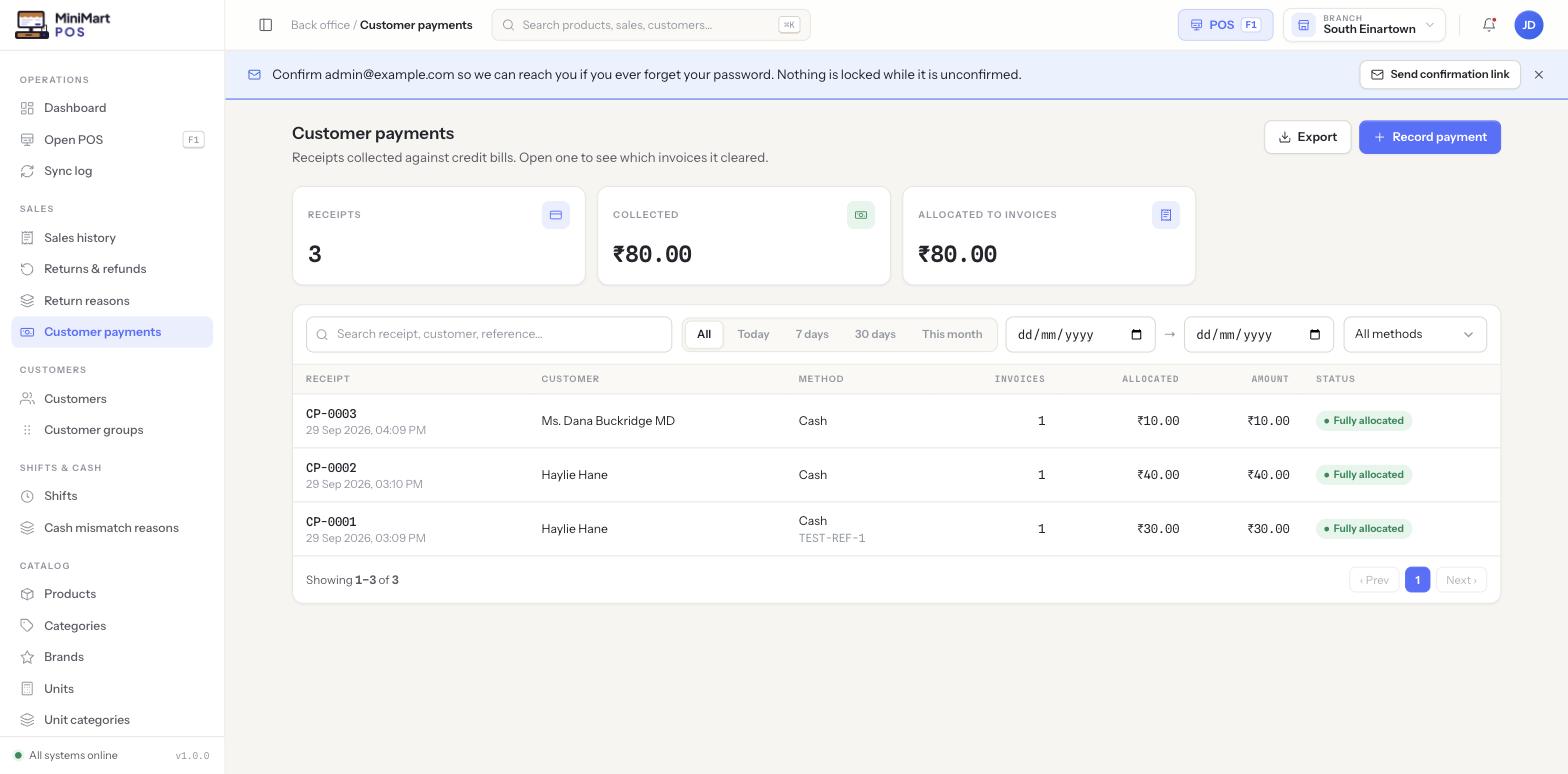
Receipts collected against credit bills. Open one to see which invoices it cleared — a customer payment is a separate record from the sale it's paying off.
Overview
Whenever a sale is put "on account" (see Taking payments), it builds up a customer's outstanding credit balance instead of being paid off on the spot. This screen is where that balance actually gets cleared: recording a payment receipt, choosing which invoice or invoices it pays down, and generating a receipt number for the record. A receipt can be allocated to one invoice, split across several, or only partially allocated if the amount collected doesn't quite cover everything outstanding.
Why it's useful
Credit sales are only half the picture — a store extending credit needs just as clear a record of what's been collected back as it has of what was sold. Keeping a payment as its own record (rather than editing the original sale) means the original invoice stays an accurate record of what was sold, while this screen stays the accurate record of what's since been paid against it.
Step by step
Recording a payment
- Open "Record payment"
Start a new receipt from this screen.
- Choose the customer
Their outstanding invoices and current balance are pulled up automatically.
- Choose the method
Cash, or another method your store accepts, with an optional reference (e.g. a bank transfer reference).
- Enter the amount received
This can be less than the full outstanding balance.
- Allocate it to invoices
Apply the amount against one or more of the customer's outstanding invoices.
- Save
A receipt number is generated and the customer's balance updates immediately.
Allocating across multiple invoices
A single receipt isn't limited to one invoice — if a customer is settling several bills at once, allocate the amount across all of them in the same receipt. The status column shows whether a receipt is Fully allocated or still has an unapplied amount sitting against the account, which shows up as credit available toward whatever they owe next.
Viewing what a receipt covers
Open any receipt from the list to see exactly which invoices it was applied to and how much went to each — useful when a customer disputes what a particular payment was for.
Finding a receipt
Use the search box, date range and method filter (Cash, etc.) to narrow the list. The three stat cards — receipts, collected total, and allocated to invoices — give a quick read on how much of what's been collected has actually been matched to a bill versus sitting as unapplied credit.
Tips & best practices
- Allocate every receipt fully where you can — an unapplied amount is easy to lose track of later, even though it still counts toward the customer's balance.
- Cross-check this list against Reports & analytics' aged receivables report periodically to catch any customer balance that's drifting out further than it should.
- Record the real reference (cheque number, transfer ID) for non-cash receipts — it's what makes reconciling against your bank statement painless later.
Notes & warnings
Recording a customer payment doesn't move any stock and doesn't appear in Sales history — it only moves money against the customer's existing balance. The original sale is where the stock movement already happened.
Misallocating a receipt to the wrong invoice doesn't change the total you've collected, but it will make individual invoice ageing look wrong in reports — double-check the allocation before saving, especially when a customer has several open invoices at once.