
Sales history
Every completed sale at this branch, in one searchable list. Open any one for its full line-by-line detail, the payments that were taken, and any return linked to it.
Overview
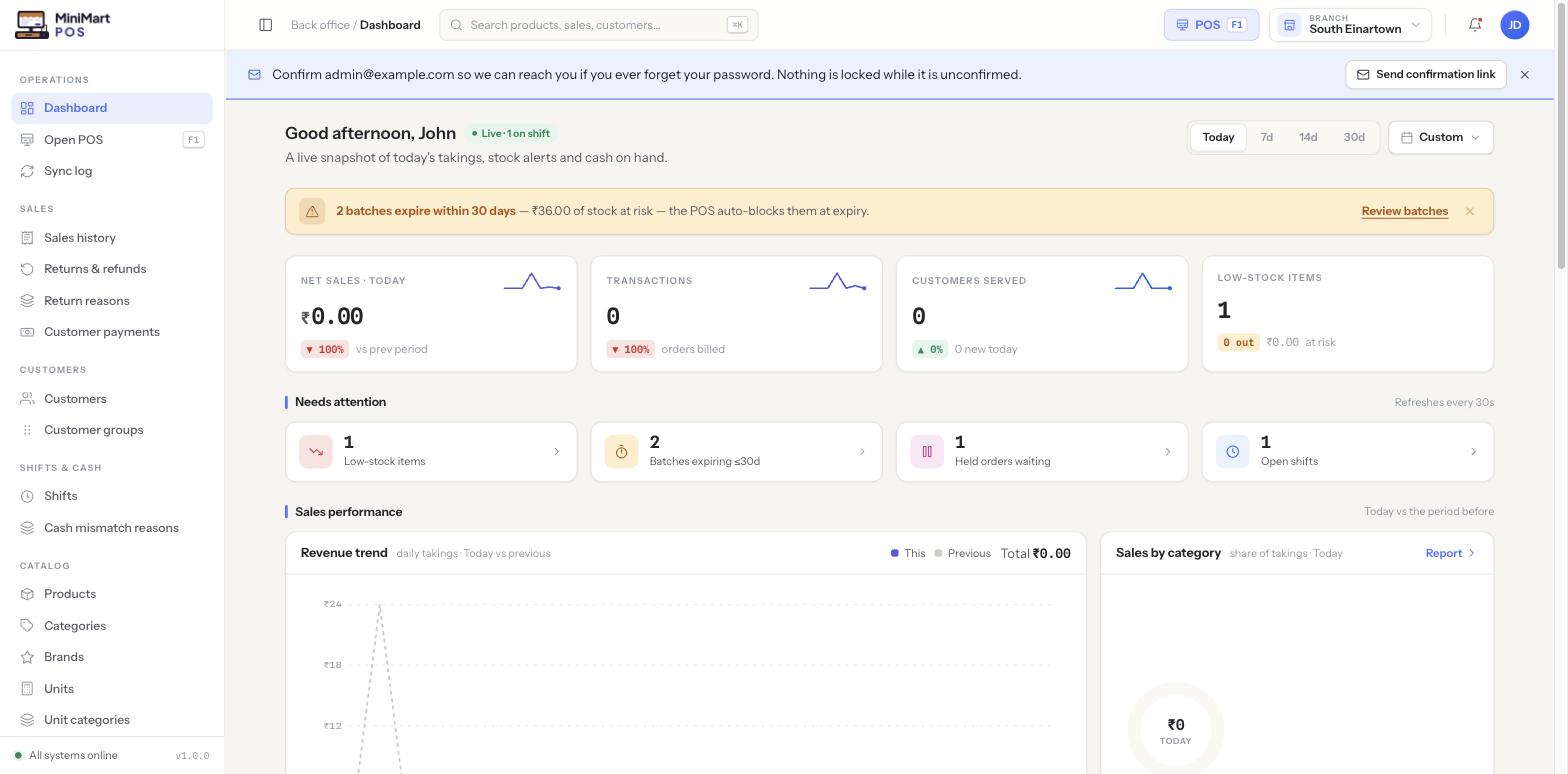
Sales history is the full record of what Sales history's own list shows, invoice by invoice, for the branch you're currently viewing — the same sales that feed the Dashboard's "Sales performance" summary, just at full line-level detail instead of a rolled-up number. Search or filter by date, status, cashier or payment method, then open any sale to see exactly what was sold, how it was paid for, and whether any part of it was later returned.
Why it's useful
A dashboard number tells you that something happened; Sales history tells you exactly what. It's where you go to answer "what did this customer actually buy last Tuesday," confirm a specific payment landed, start a return against the right invoice, or re-create a sale that came in over the phone rather than at the till.
Step by step
Finding a sale
- Search
Look up a sale by invoice number, customer name or similar.
- Filter by date, cashier or payment method
Narrow a busy list down to the window and conditions you actually care about.
- Open it
See every line sold, quantities, prices and any line-level discount, plus every payment taken against it (including a split-tender breakdown — see Taking payments).
Raising a manual (back-office) sale
- Open "New sale" from Sales history
Use this when a sale didn't happen at the till — a phone order, or a sale the owner wants recorded without walking it through the POS screen.
- Add lines and a customer as normal
The same pricing, tax and stock rules apply as a POS sale — there's no separate, looser set of rules for a manually-entered one.
- Take or record the payment
Same payment screen and rules as Taking payments, including on-account for a credit customer.
Starting a return from here
Open the sale and choose to return it rather than starting blind from the Returns & refunds screen — it's the fastest way to make sure the credit note links to the right invoice and lines.
Tips & best practices
- Use the cashier filter when investigating a shift's variance alongside Shifts & cash drawer — it's the fastest way to see exactly what that cashier rang up.
- Export a filtered list when you need to hand a specific window of sales to your accountant rather than the whole history.
- If a figure on the Dashboard looks off, Sales history with the matching date filter is the first place to check the underlying invoices.
Notes & warnings
Once a sale is finalised, correct it with a return against the original invoice rather than looking for an edit option on the sale itself — there isn't one, by design, so the original record stays intact.
Sales history shows the branch you're currently viewing. Switch branches from the header to see another branch's sales — see Multi-branch.