
Dashboard tour
The dashboard is the first thing you see after signing in — a quick read on how the shop is doing today, and what needs your attention before anything else.
Overview
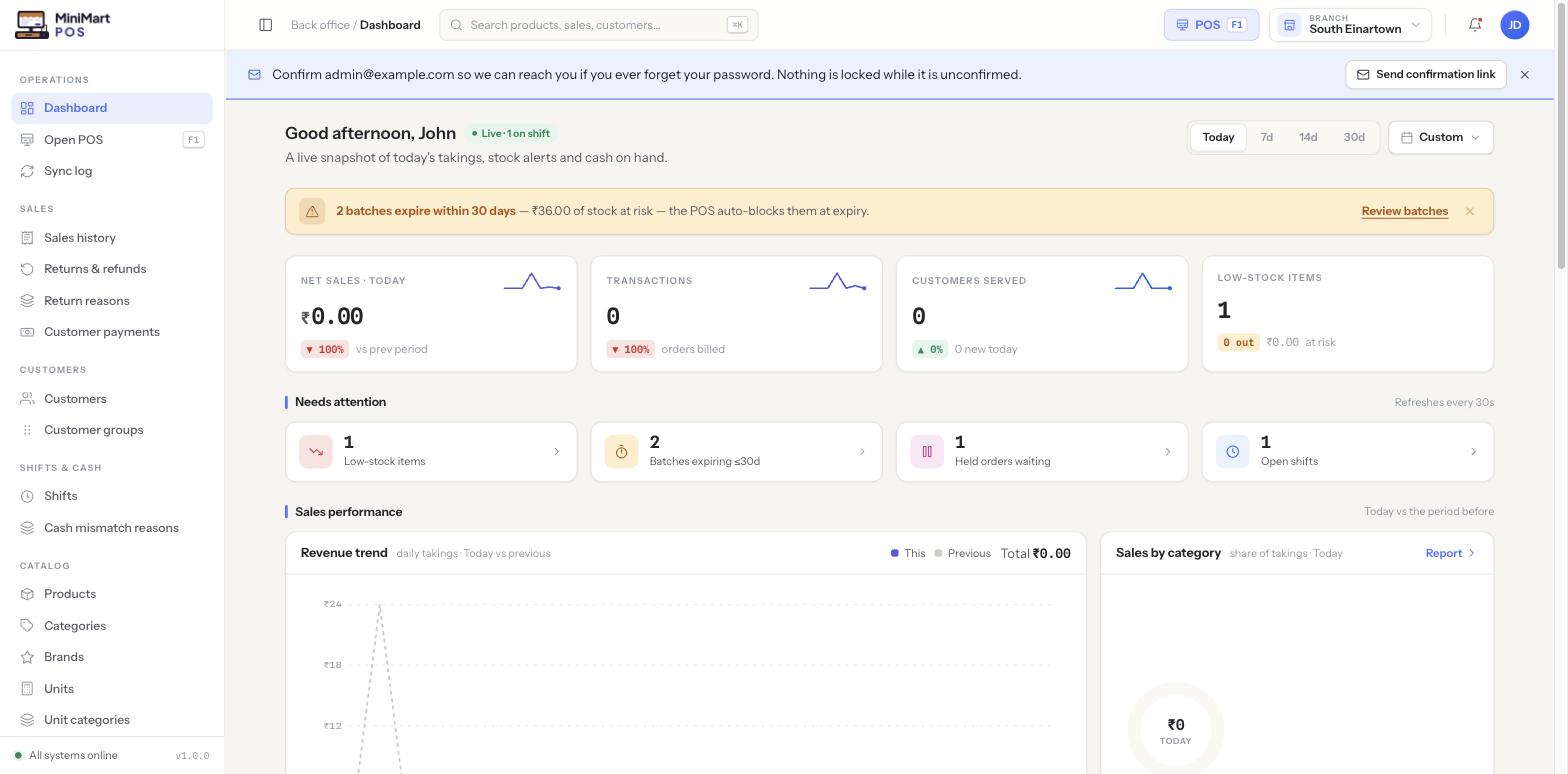
The dashboard greets you by name (and, if you have an open till, shows that you're mid-shift), then gives you a handful of numbers that matter most: how much you've sold, how many transactions and customers you've served, and anything that needs action — low stock, batches about to expire, held orders waiting, or shifts left open. Everything on it is scoped to the branch currently selected in the branch switcher at the top of the screen.
Why it's useful
Instead of clicking into five different screens every morning to check if anything's wrong, the dashboard surfaces the handful of things that actually need a decision from you today — stock running low, batches about to expire, held sales nobody finished, shifts someone forgot to close — right at the top, before you've even looked at a sales number.
Reading the page
Date range tabs
Along the top, tabs let you switch the whole dashboard between Today, 7d, 14d, 30d and a Custom range — every KPI, chart and comparison below updates to match whichever range is selected.
The alert banner
When something time-sensitive needs attention — for example, batches that will expire within 30 days, with an estimated stock value at risk — an amber banner appears above the KPI cards with a direct link through to the relevant screen (such as "Review batches," which opens Stock, low stock & batches). MiniMart's POS automatically blocks expired batches from being sold, so this banner is your early warning before that happens.
KPI cards
Four headline numbers, each with a small trend sparkline and a percentage comparing it to the previous equivalent period:
- Net sales today — total sales revenue for the selected range, net of any returns.
- Transactions — how many sales were completed.
- Customers served — distinct customers who made a purchase.
- Low-stock items — how many products have fallen at or below their reorder threshold.
Needs attention
Four clickable tiles that take you straight to the thing they describe:
- Low-stock items → Stock, low stock & batches
- Batches expiring ≤30d → Stock, low stock & batches
- Held orders waiting → the POS screen's held-orders list
- Open shifts → Shifts & cash drawer
Sales performance
A revenue trend chart compares This period against the Previous equivalent one, and a sales-by-category breakdown shows which parts of your catalog are driving sales. Click through "Report" for the full, filterable version in Reports & analytics.
Tips & best practices
- Start the day on Today and only switch ranges when you want a longer-term comparison — it's easy to misread yesterday's number as today's if you forget which tab is active.
- Click through the "Needs attention" tiles rather than guessing — each one opens pre-filtered to exactly the records that triggered it.
- If low-stock items keep showing up for the same products, consider raising their reorder threshold in Products & variants instead of restocking reactively every time.
- Open shifts left over from a previous day are easy to miss — the dashboard's tile is there specifically so they don't get forgotten; see Shifts & cash drawer to close them properly.
Notes & warnings
Every number on this page reflects whichever branch is currently selected in the branch switcher. If you manage several branches, switch between them to see each one's own picture — the dashboard does not show a combined total across branches.
The expiring-batches alert isn't just informational — once a batch actually expires, the POS will refuse to sell stock from it. Treat the alert as a deadline to act on, not a passive notice.