
The control plane
MiniMart POS is a multi-tenant SaaS: one hosted installation serves many separate shops ("stores"). The superadmin console is where the person running that installation manages the whole platform — it is a completely different area from the store back-office documented everywhere else in this guide.
Overview
Every other page in this guide — selling, products, inventory, customers, purchasing, reports, settings — describes the back-office a single store's staff use to run that one shop. This page, and the three after it, describe something else entirely: the console used by whoever hosts MiniMart POS itself and sells access to it as subscriptions to many individual stores. If you're a shop owner or one of your staff, you will never see this console and don't need to read this section. If you run the platform — or you're evaluating MiniMart POS as a product you intend to host and resell — this is the area that matters to you.
A superadmin user is a different kind of account from a store user. It has no store_id and belongs to no branch, so none of the ordinary store concepts — a branch switcher, a till, a shift — exist in this console at all. A superadmin signs in at the same /app/login screen as everyone else, but MiniMart recognizes the account type and routes them into this separate shell instead of a tenant's dashboard.
Why it's useful
Running MiniMart as a hosted product means someone has to approve new shops signing up, decide what each subscription plan includes, collect payment for those subscriptions, publish the public marketing site prospective stores land on, and configure the handful of things that apply to the whole installation rather than to any one store — outbound email, file storage, the platform's own branding defaults. None of that belongs inside a store's own Settings, because none of it is a single store's business to change; it's the operator's. The superadmin console is where all of that platform-level work happens, kept deliberately separate so a store admin — however senior inside their own shop — never has access to another store's data or to the billing relationship between the platform and its stores.
How the console is organized
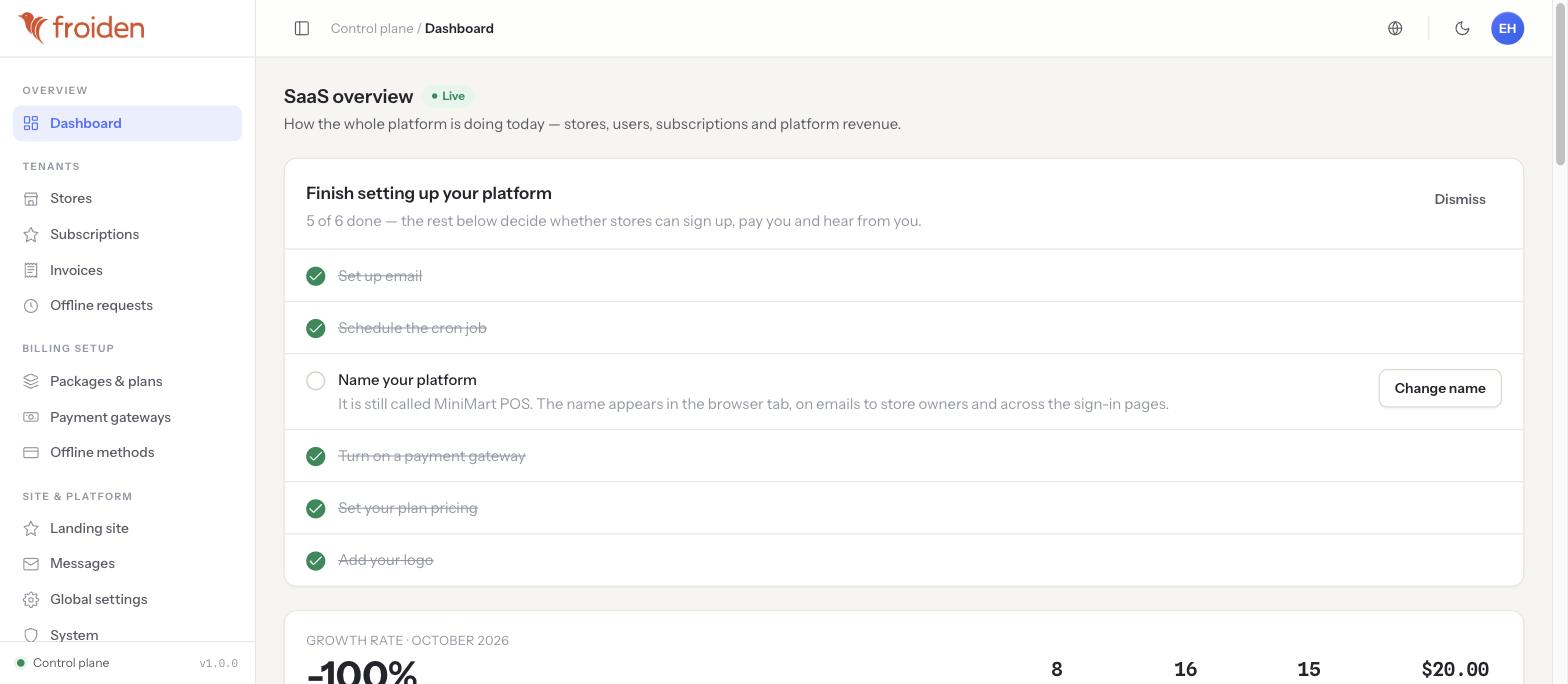
The superadmin console has its own sidebar, grouped into four areas:
- Overview — the platform-wide Dashboard shown above.
- Tenants — Stores, Subscriptions, Invoices and Offline requests, covered in Stores, subscriptions & invoices.
- Billing setup — Packages & plans, Payment gateways and Offline methods, covered in Packages, plans & gateways.
- Site & platform — Landing site, Messages, Global settings, System, Superadmin users, API keys and API reference, covered in Landing site & platform settings.
The dashboard itself leads with a short "Finish setting up your platform" checklist — email, the cron job, platform name, a payment gateway, plan pricing, a logo — so a freshly installed platform has a clear, ordered path to actually going live, rather than a blank console with no indication of what still needs doing.
Tenants, in plain terms
Throughout this console and its documentation, a store (also called a tenant) means one shop's entire account on the platform — its products, branches, staff, sales and customers, all isolated from every other store. The superadmin console manages the business relationship with each store (its plan, its billing, whether it's active) without ever stepping inside that store's day-to-day operations — except deliberately, via impersonation, covered on the next page.
Tips & best practices
- Start every session on the Dashboard — the setup checklist and the growth numbers are the fastest way to notice something's wrong (a gateway that stopped working, signups stalling) before a store notices first.
- Treat the platform name/logo/branding items in the setup checklist as more than cosmetic — they appear on every email a store owner receives and on the sign-in screen itself, so leaving the product's placeholder name live looks unfinished to your customers.
- Bookmark Stores, subscriptions & invoices — it's the page you'll return to most often for day-to-day support.
Notes & warnings
Don't confuse the superadmin console with a store's own Owner/Admin role (see Glossary). A store admin — however much access they have — only ever sees their own store's data. Superadmin access is a separate account type with no store at all, used only by whoever operates the platform.