
Landing site & platform settings
The public marketing site every prospective store sees before signing up, the messages it collects, and the settings that apply to your whole installation rather than to any one store.
Overview
This is the broadest of the four superadmin clusters — it covers the public-facing marketing site, the inbox behind its contact form, the platform-wide settings grouped under Global settings, basic licence/update status under System, who else has operator access under Superadmin users, and the keys for building external integrations against the platform's own API.
Why it's useful
A hosted SaaS needs a public website that actually sells the product — but editing that website shouldn't require a developer every time the copy changes. The block-based builder here means the operator can reorder sections, swap a headline, or turn off a section entirely, all without touching code, while the handful of true platform-wide settings (mail, storage, branding defaults) live in one place instead of being scattered per store.
Landing site
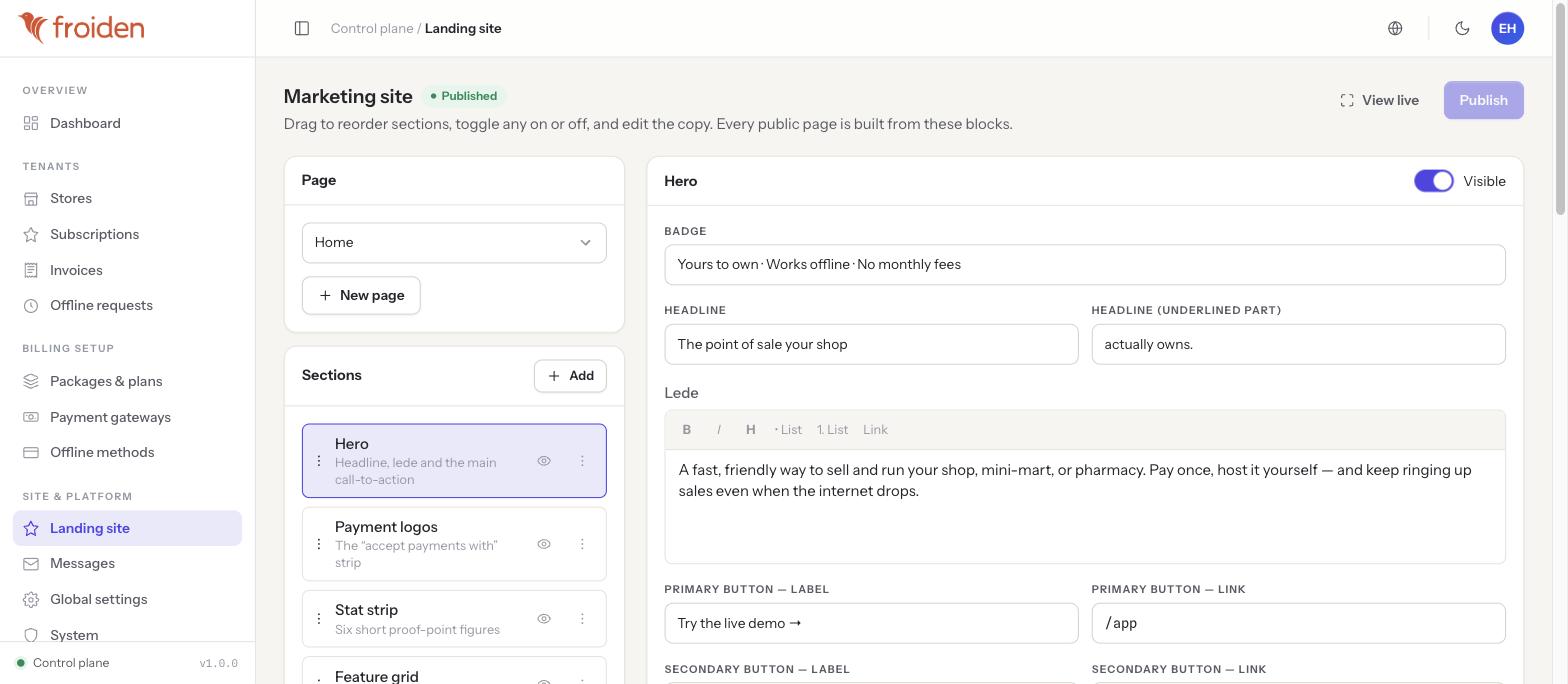
The public marketing site — what a prospective store owner sees before they ever sign up — is built from editable, re-orderable, toggleable blocks: Hero, Payment logos, Stat strip, Feature grid, and others. Each block has its own editable fields (for Hero: badge text, headline, an underlined portion of the headline, a rich-text lede, and primary/secondary button labels and links).
- Pick a page
Use the Page selector (Home, or any additional page you've created) in the top-left of the builder.
- Select a section
Click a block in the Sections list — Hero, Payment logos, Stat strip, Feature grid, and so on — to open its editable fields on the right.
- Reorder or hide
Drag a section's handle to reorder it on the page, or click its eye icon to hide it without deleting it.
- Edit the copy
Change headline, lede, badge text and button labels/links directly in the panel on the right.
- Preview, then publish
Use "View live" to check a draft before committing to it, then click "Publish" — the site shows a green "Published" pill once your changes are live.
Messages
Every submission from the public marketing site's contact form lands here as an inbox the operator can read and work through — the first point of contact for a prospective store that isn't ready to just sign up and start a trial.
Global settings
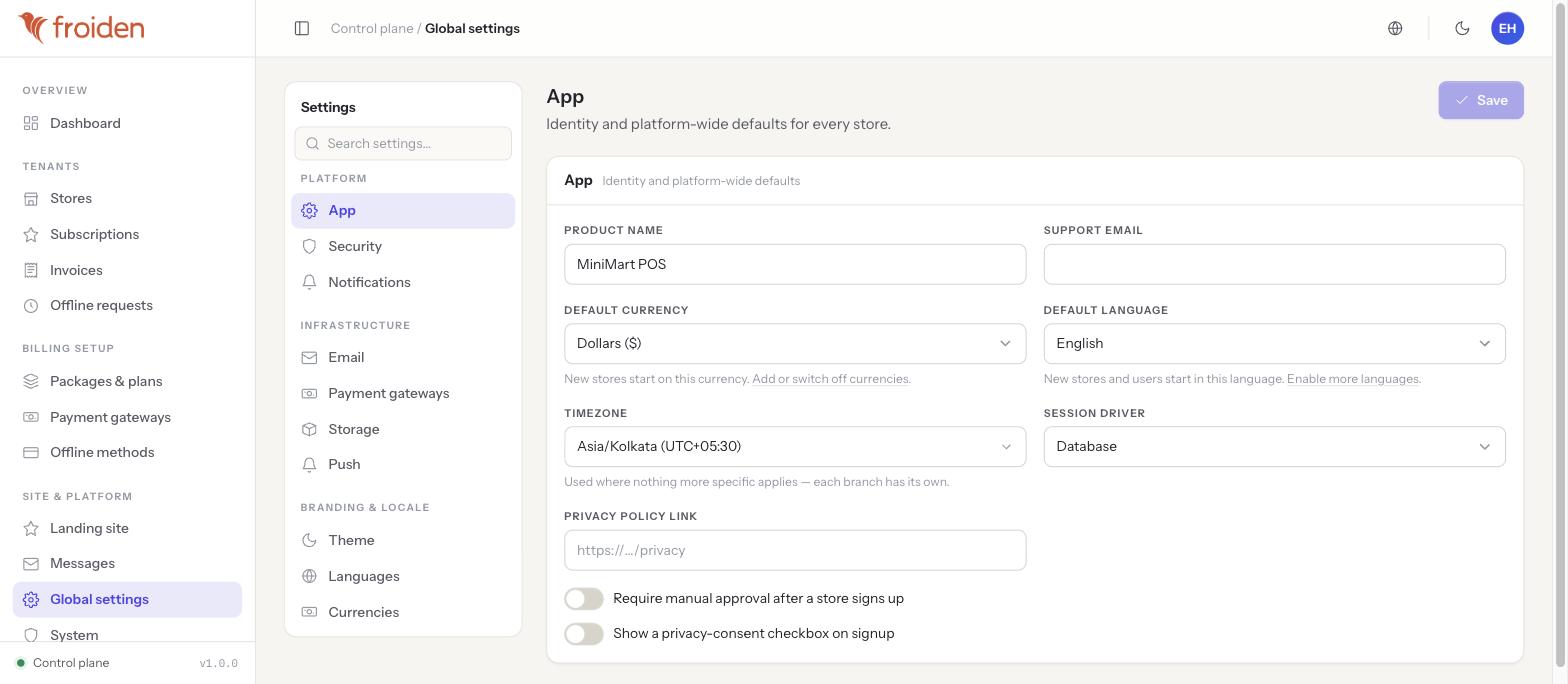
Platform-wide configuration, organized into three groups in the settings rail:
- Platform — App (product name, support email, default currency and language, timezone, session driver, privacy-policy link, plus the "require manual approval after signup" and "show a privacy-consent checkbox" toggles), Security (platform-wide password policy, session timeouts), Notifications.
- Infrastructure — Email (the outbound mail transport for the whole platform — every email any store or the platform itself sends goes through this), Payment gateways (the same platform-level gateways described in Packages, plans & gateways), Storage (where uploaded files are kept), Push (push-notification credentials).
- Branding & locale — Theme (the platform-wide default logo, favicon and accent colour — what a tenant store falls back to until it uploads its own branding), Languages, Currencies (which currencies are available platform-wide for a store to pick from in its own settings).
Why this lives here, not in a store's settings
Infrastructure like outbound mail transport, file storage and push credentials is platform configuration — the operator pays for and manages it once, for every store, rather than each store needing its own SMTP account. This is a deliberate SaaS design choice: a self-hosted, single-tenant product would put these per-store, but MiniMart is multi-tenant, so they live here instead.
System
Licence status and update/version information for the installation as a whole.
Superadmin users
Manages who else has operator-level access to this entire console — add a second operator, or remove one who no longer needs access.
API keys & API reference
Credentials and documentation for building external integrations against the platform's own cross-tenant API — distinct from the per-store API keys found in a single store's own Settings (see Store profile & plan), which only ever touch that one store's data.
Tips & best practices
- Always preview a landing-page change with "View live" before publishing — a half-written headline on your public pricing page is the first thing a prospective store sees.
- Set up Email in Global settings before anything else — store signup confirmations, invoices and password resets all depend on it working.
- Finish the platform name/logo items on the dashboard checklist early — they appear on every email a store owner receives, not just inside this console.
- Review Messages on a schedule, the same way you'd check a shared support inbox — nothing here notifies you by default beyond the message landing in the list.
Notes & warnings
The logo, favicon and accent colour set under Global settings → Theme are what a store sees until it uploads its own branding in its own settings — changing this default doesn't overwrite a store that's already customized its look.
Changing the mail transport or storage driver here affects every store on the platform at once, not one at a time — treat these as infrastructure changes, ideally tested during low-traffic hours.