
Stores, subscriptions & invoices
Every shop running on your platform, its recurring billing, and the invoice history behind it — plus the manual approval queue for stores that pay by an offline method.
Overview
This cluster is where the platform operator manages the business relationship with every individual store on the platform: who they are, what plan they're on, whether they're paid up, and what to do about a signup that needs a human decision before it goes live. It's organized as four related screens — Stores, Subscriptions, Invoices and Offline requests — all scoped across every tenant on the installation, which is exactly the view a single store never gets.
Why it's useful
Without this, there'd be no way to onboard a new shop, help one that's stuck, collect what they owe, or shut off access when a subscription lapses. It turns "a customer emailed support" into a concrete, auditable set of actions: look up their store, see their plan and payment status at a glance, and either fix it yourself or sign in as them to see exactly what they're seeing.
Stores
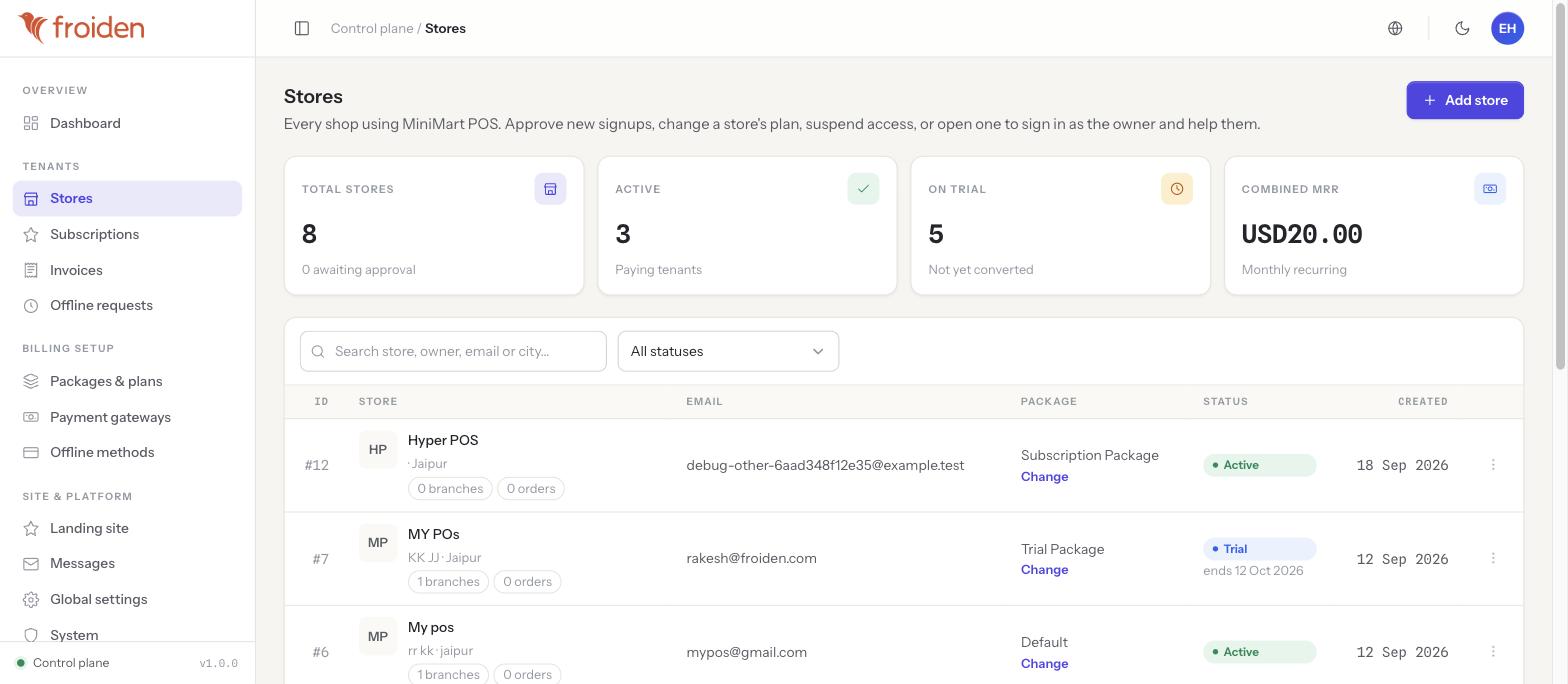
The Stores list shows every tenant, its city and branch count, its order count, its current package (with an inline "Change" link), and a status pill — Active for a paying store, or Trial with the date the trial ends. A search box and a status filter narrow a long list down quickly. Four stat cards at the top — total stores, active (paying) stores, stores still on trial, and combined MRR (monthly recurring revenue across every store) — give a one-glance read on platform health.
If Global settings → App's "Require manual approval after a store signs up" toggle is on (see Landing site & platform settings), a brand-new signup sits pending here until an operator approves it, rather than going straight to active.
Acting on a store — the row menu
Opening a store's row menu (⋮) gives you the actions an operator needs for day-to-day support:
- Change plan — move the store onto a different package immediately.
- Suspend / reactivate — cut off (or restore) the store's access without deleting any of its data.
- Reset the owner's password — issue a new password when a store owner is locked out and can't use self-service reset.
- Extend a trial — give a store more time to decide before their trial converts or lapses.
- Impersonate — sign in as that store's owner, covered below.
Impersonating a store
- Open the store's row menu
From the Stores list, find the store that needs help and open its ⋮ menu.
- Choose Impersonate
MiniMart signs you in as that store's owner, inside that store's own back-office — the same screens its staff use day to day.
- Help, then end the session
Reproduce the issue, fix a setting, or walk through what the store owner is seeing. End the impersonation session explicitly when you're done rather than just closing the tab.
Impersonation is the deliberate exception to "superadmin never touches a store's own data" — it exists specifically for support, and it's built to be safe to use: every impersonation is logged (who impersonated which store, and when it started and ended), and it never signs you out of your own superadmin account — you're always one step away from returning to the console.
Subscriptions
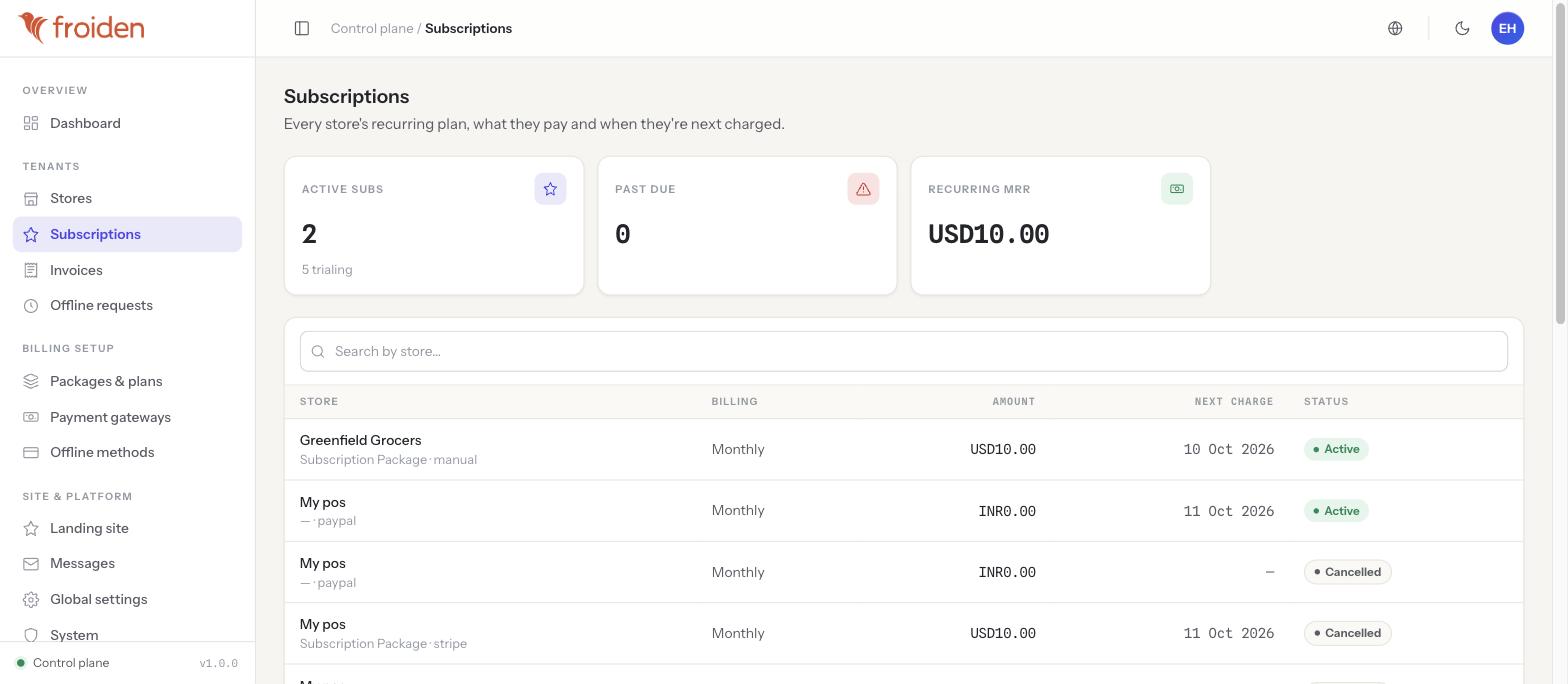
Where Stores shows who's on which plan right now, Subscriptions shows the recurring billing mechanics behind it: which payment processor is actually charging the store — a real gateway such as Stripe, PayPal or Razorpay, or manual for a store billed outside any gateway (an offline/invoiced arrangement) — along with the billing frequency, the amount, the next charge date, and a status pill (Active or Cancelled). Stat cards at the top total active subscriptions, past-due accounts, and recurring MRR.
Invoices
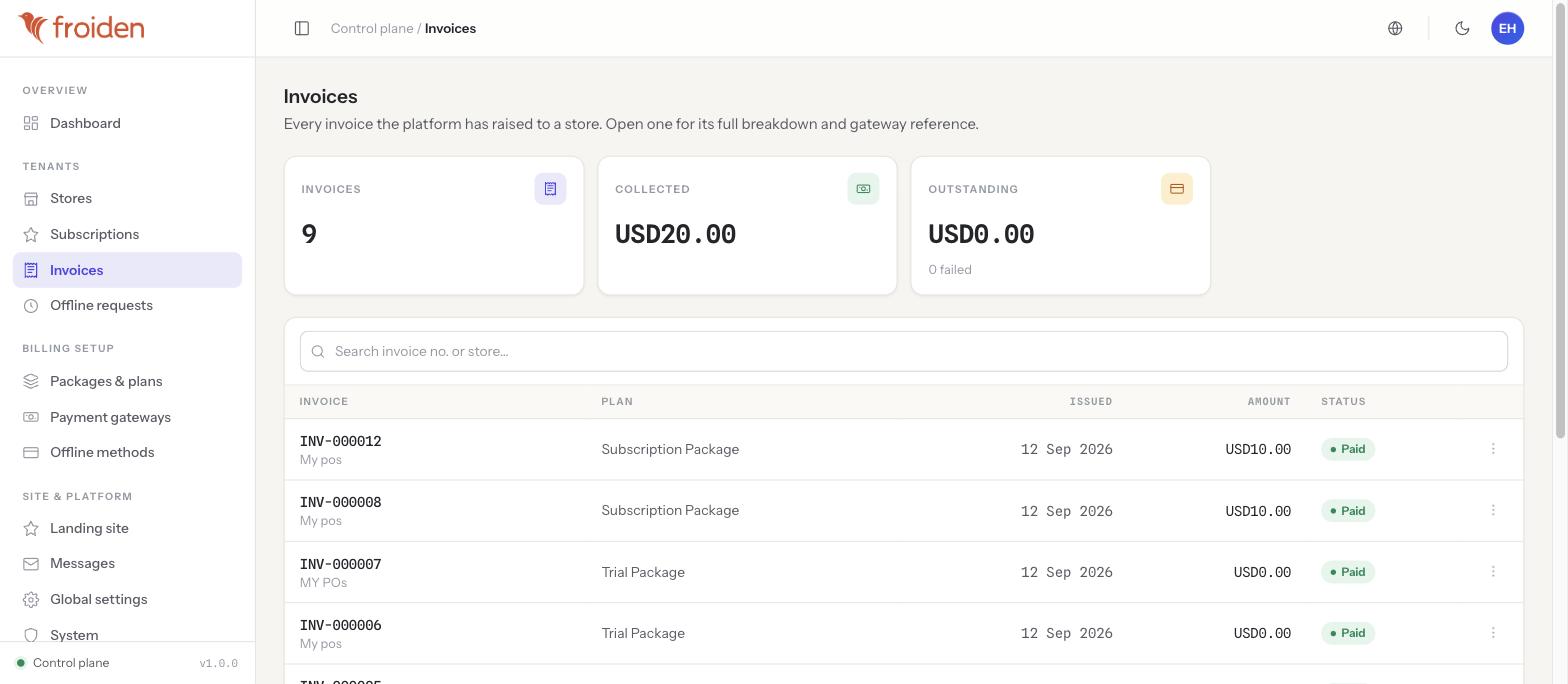
The full billing history the platform has raised to its stores — every invoice number, which store and plan it's for, when it was issued, the amount, and its status. Opening one shows its full breakdown and the gateway reference backing the payment.
This is the platform billing a store for its subscription — completely separate from that store's own sales invoices to its customers, which live inside that store's back-office (see Sales history), not here.
Offline requests
A store paying by an offline method (bank transfer, cheque, cash — configured in Packages, plans & gateways's Offline methods) can't be auto-charged by a gateway when it wants to change plan. Instead it submits a plan-change request that lands in this queue, where an operator reviews the store's claim (e.g. that payment has been sent) and approves or rejects it by hand, updating the store's plan once approved.
Tips & best practices
- Check Offline requests regularly if you offer offline payment methods at all — unlike a gateway charge, nothing here happens automatically until an operator acts.
- Prefer "Suspend" over anything destructive when a subscription lapses — it cuts off access cleanly and reversibly, and the store's data is intact the moment they pay up.
- Use Impersonate before asking a confused store owner to screen-share — it's almost always faster to just look at what they're seeing yourself.
- Cross-check a subscription's "past due" status against Invoices before assuming a gateway problem — sometimes it's as simple as an expired card on the store's side.
Notes & warnings
Every impersonation session is logged with who started it, which store, and when it began and ended. Use it for genuine support, not casual browsing of a store's data.
Suspending cuts the store's staff off from signing in right away. Make sure support has actually resolved (or at least acknowledged) whatever triggered the suspension before using it, since it directly blocks a real shop from trading.